

Battle Beaver's In-House Settings
We calibrate each Marius Board in-house prior to shipping. Our settings aren’t universal or sacred, but if you want to get back to roughly how we shipped it, here’s our list of basic settings.
Thumbstick Configuration
- Inner Deadzone: 2%
- Outer Deadzone (varies): 0–5%
- CER Target (adjusted via calibration): 6–9%
- Bitrate: 12-bit
Trigger Configuration
- Mode: Analog
- Rest (numbers vary): 100–150 below Raw
- Press: High enough to max out easily, but not too early
- Hair Trigger: 100% (disabled)
LED Control
- Color: #0099FF
Final Settings
- External Input Mapping: Button assignments vary. Most common: Left – X (Cross), Right – O (Circle)
- Polling Rate: 8KHz
Project Marius Setup & Calibration Guide: Part 1
Project Marius boards are highly customizable, advanced pieces of equipment that give you the power to fine-tune almost every aspect of their behavior.
This page will walk you through the initial setup of your Project Marius board and explain the options available to you in the calibration software.
After completing the initial setup, visit the Circularity and Advanced Calibration page for a deep dive on Circularity, Circularity Error Rate, and advanced calibration options.
Before you start:
Battle Beaver calibrates every Project Marius board in-house with XInput prior to shipping with settings fit for a broad audience. If you want an OEM experience — plug in a controller, play a game — this standard calibration will probably work for you. We recommend trying the controller first to see if you like how it feels out of the box.
If you do end up wanting to make changes that really dial the controller in to your preferences, our settings aren’t sacred. There’s no “one-size-fits-all” calibration, and every set of sticks will feel different to every set of thumbs. To fit your thumbs, you have the power to freely change every option available.
Your success in this, though, will largely come down to your willingness to experiment. If you’re willing to really dig in, the reward is a controller that acts and feels exactly how you want it to.
And even if you mess something up, you can always start over fresh by restoring from a backup or repeating the initial setup. You won’t break your controller just because you decided to experiment with your thumbstick calibration.
So don’t worry! Give it a try.

Overclock Warning
Project Marius boards do not require hidusbf drivers for overclocking.
If you attempted to overclock your board with that software at any point, please reset the overclock before continuing with setup.
To do this, visit https://battlebeavercustoms.com/pages/overclocking and complete Steps 13-18. When setting the rate, choose DEFAULT.
Settings Backup
Optional: Follow these instructions to preserve Battle Beaver’s calibration, or to save your own calibration adjustments.
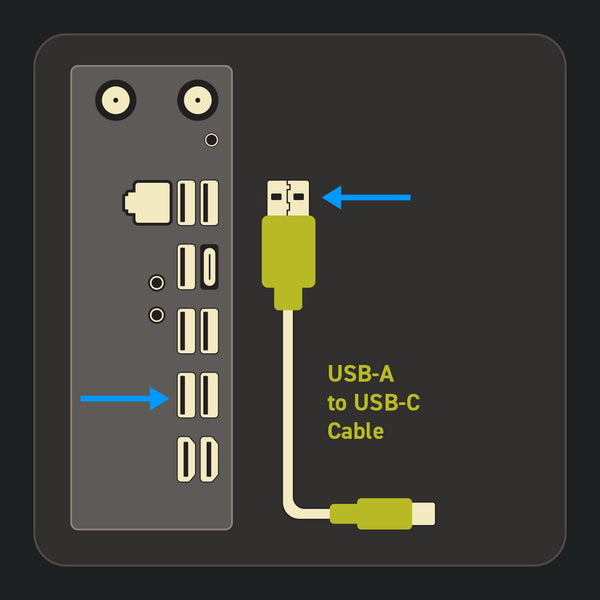
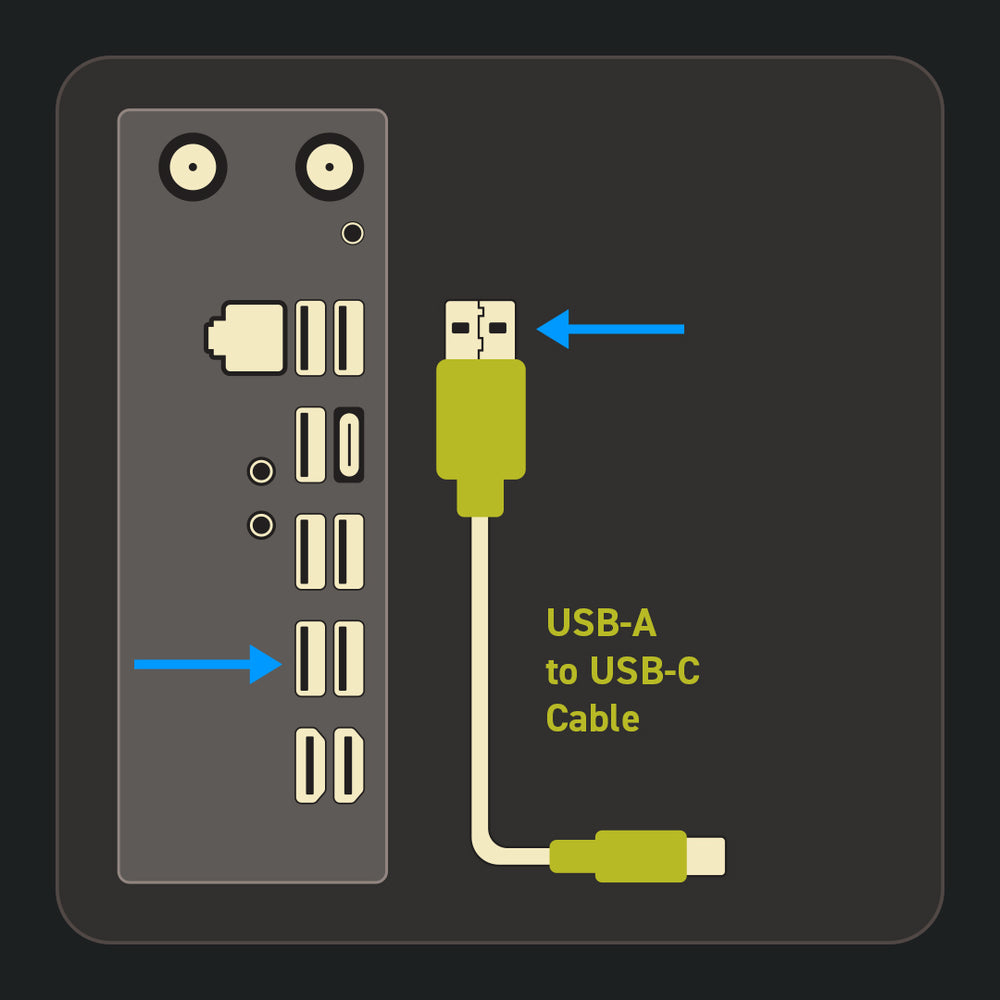
USB-A → PC
Plug your USB cable into the back of your PC, NOT a front panel port or USB hub.
For best results, use a high-quality USB-A to C data cable (USB 2.0 or higher).
To purchase a cable from Battle Beaver, click here.
Before continuing, open the setup page:
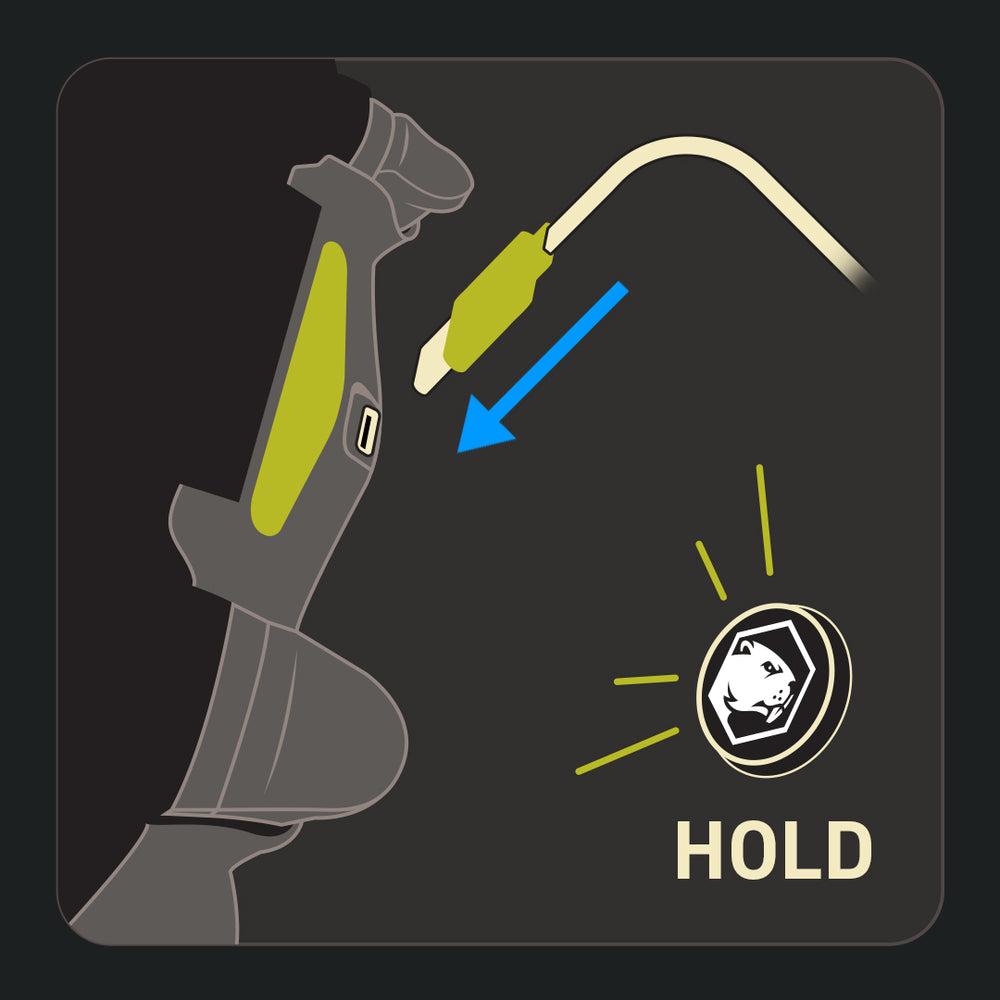
USB-C → Controller
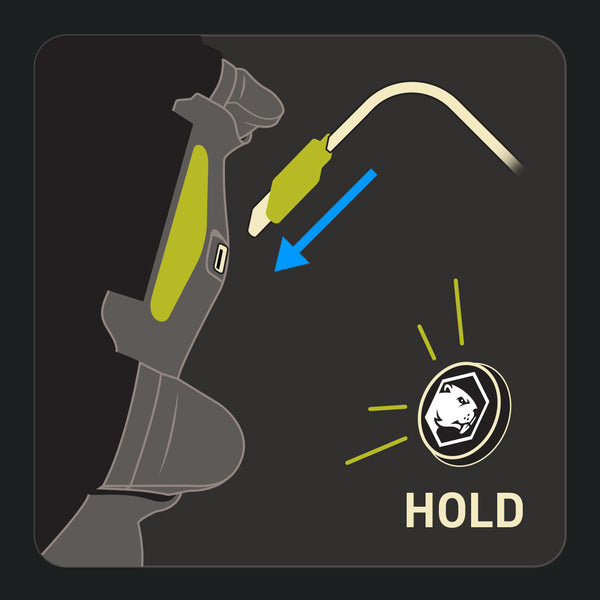
Press and hold the PS Button (or Guide Button, on MHX). While holding, plug the USB-C end of the cable into your controller.
This activates Setup Mode. When in Setup Mode, the LED should gradually change between red, white, and blue. If not, try again, and make sure to PS Button (or Guide Button on MHX) is held down while plugging the controller in.
If the LED flashes green instead, visit https://update.mariusheier.com and follow the instructions to update the firmware.
If you still can't get into Setup Mode, contact Customer Support.
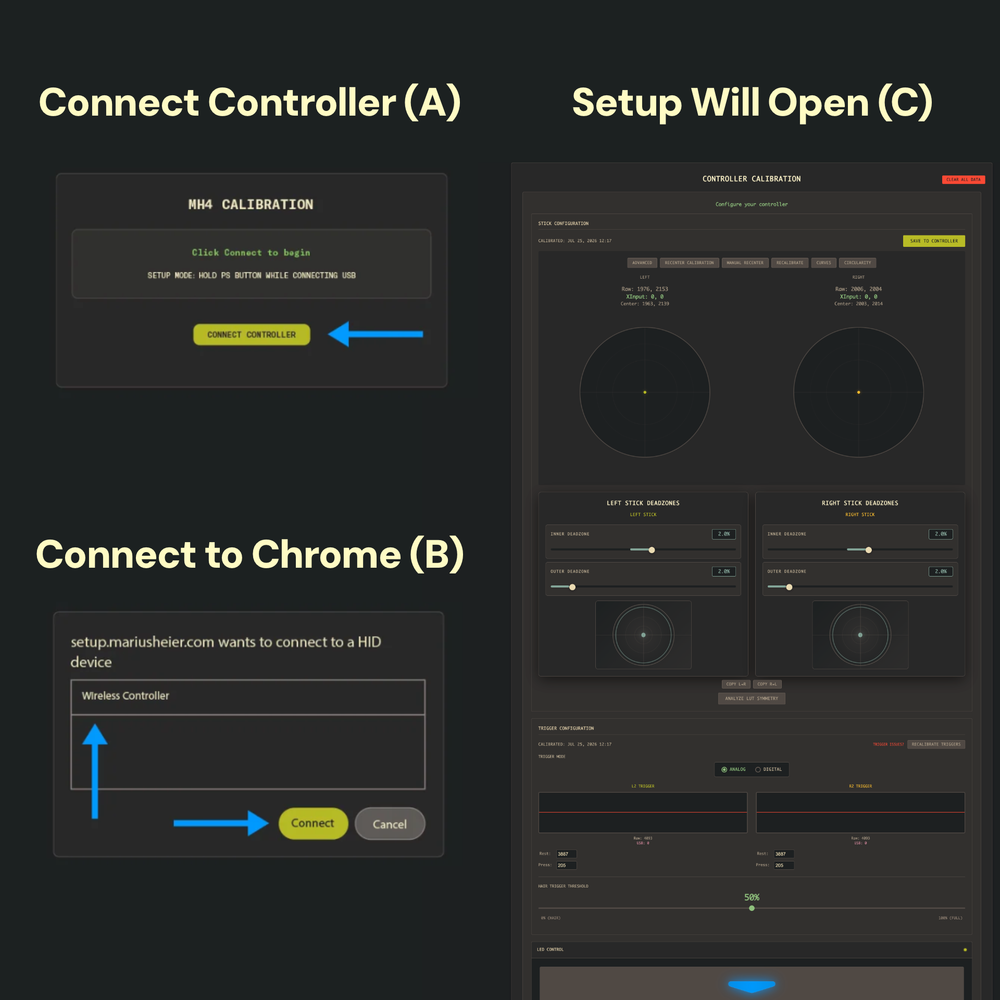
Connect the Controller and Open the Setup Page
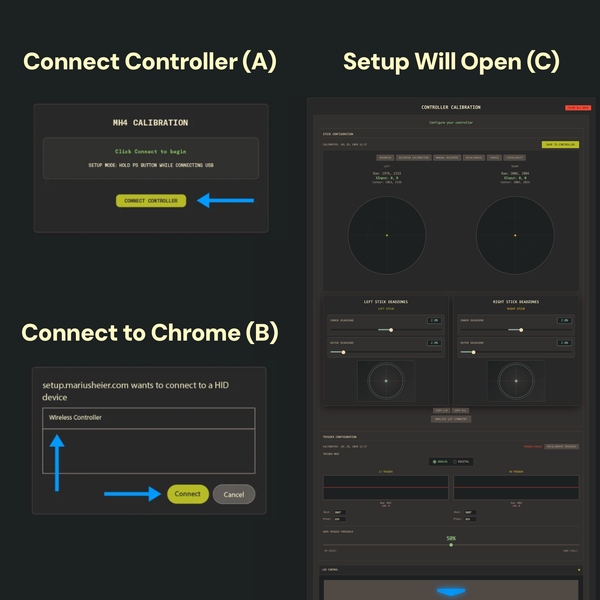
Click the CONNECT CONTROLLER button (A). This will pop up a browser window. Select your controller from the list, then click Connect (B).
The main setup page will open (C).
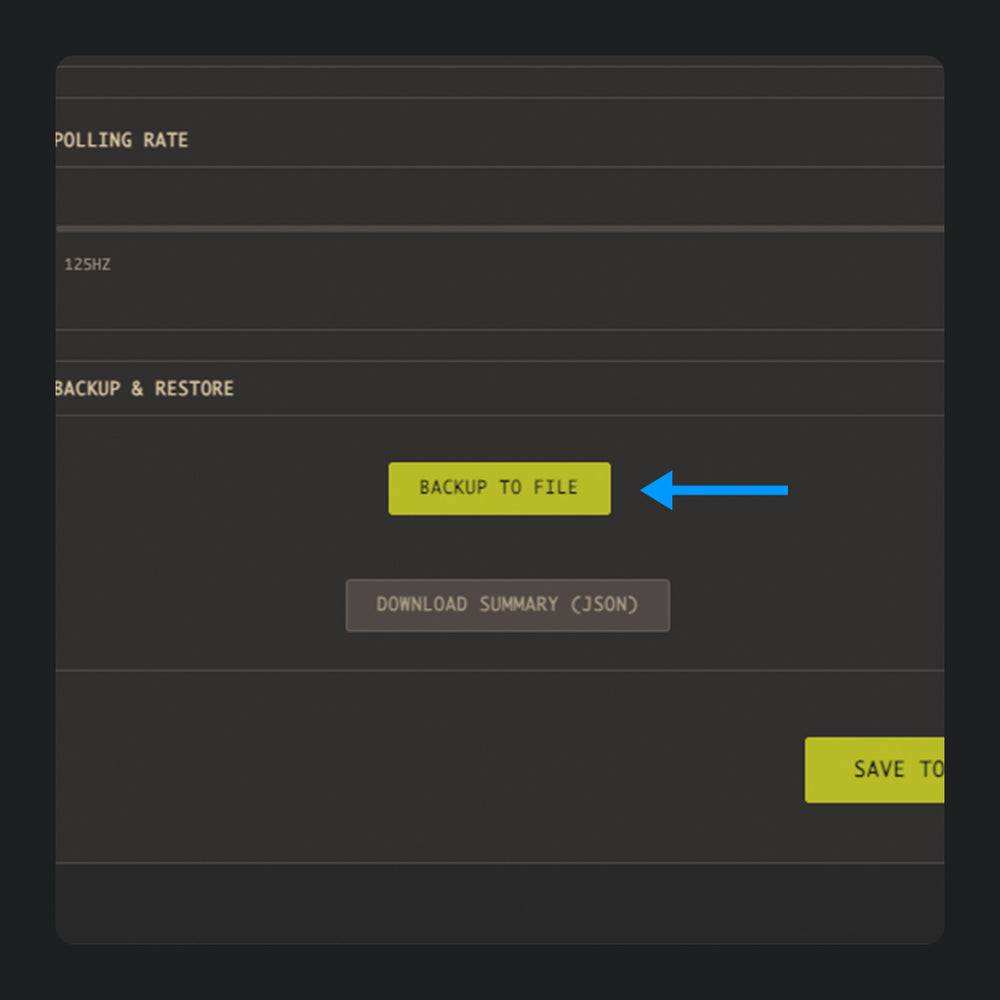
Save the Backup
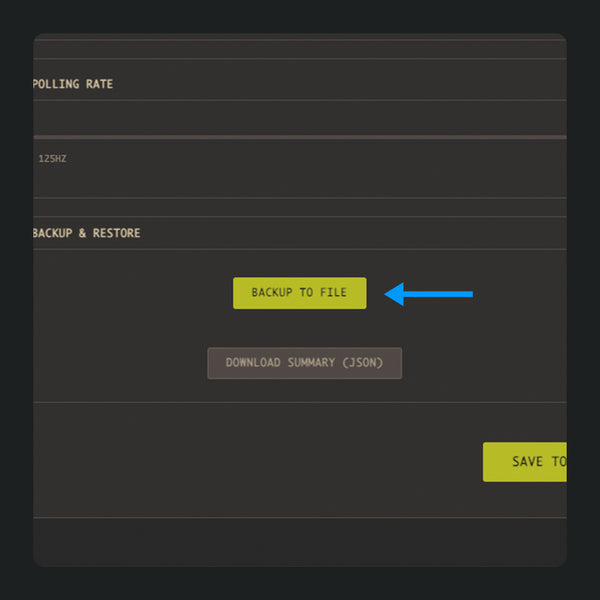
Scroll all the way down to the bottom of the main setup page and click the BACKUP TO FILE button.
This should either automatically download or prompt you to download your settings backup file.
Confirm the backup file was saved to your computer, then unplug the controller and continue to the next section.
XInput Mode Info
In July 2026, Marius released XInput Mode in his standard setup software. XInput Mode has the following benefits compared to the previously available DirectInput Mode:
- Fewer connectivity issues at high polling rates
- Remappable Touchpad input on MH4 and MH5 boards
- Higher thumbstick resolution, from 8-bit to 12-bit
- Faster response times due to the elimination of DirectInput overhead
Battle Beaver now ships all Project Marius controllers in XInput Mode, and all instructions in this guide are for XInput Mode.
For existing customers that bought a board before XInput was available, we have a smaller instructions page at https://battlebeavercustoms.com/blogs/news/introducing-xinput that will quickly walk you through updating to XInput without losing your current calibration.
XInput Firmware Installation
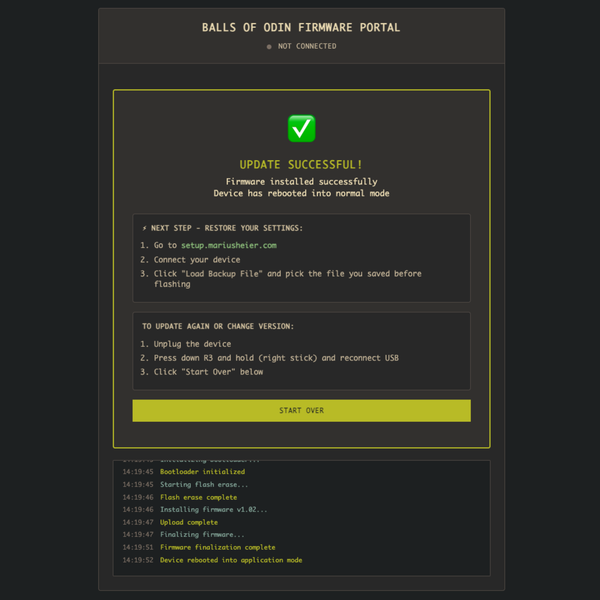
Before proceeding:
⚠️ We recommend backing up your settings before attempting firmware installation or updates.
Project Marius boards purchased after July 22nd, 2026 already have the most recent version of the XInput firmware available at the time of purchase, so following this section isn’t required if you just received your order.
USB-A → PC (Skip if done already)
Plug your USB cable into the back of your PC, NOT a front panel port or USB hub.
For best results, use a high-quality USB-A to C data cable (USB 2.0 or higher).
To purchase a cable from Battle Beaver, click here.
Before continuing, open the firmware update page:
USB-C → Controller
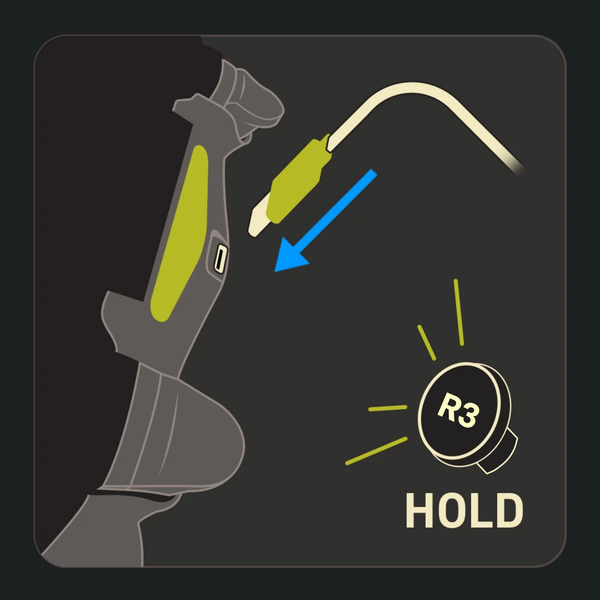
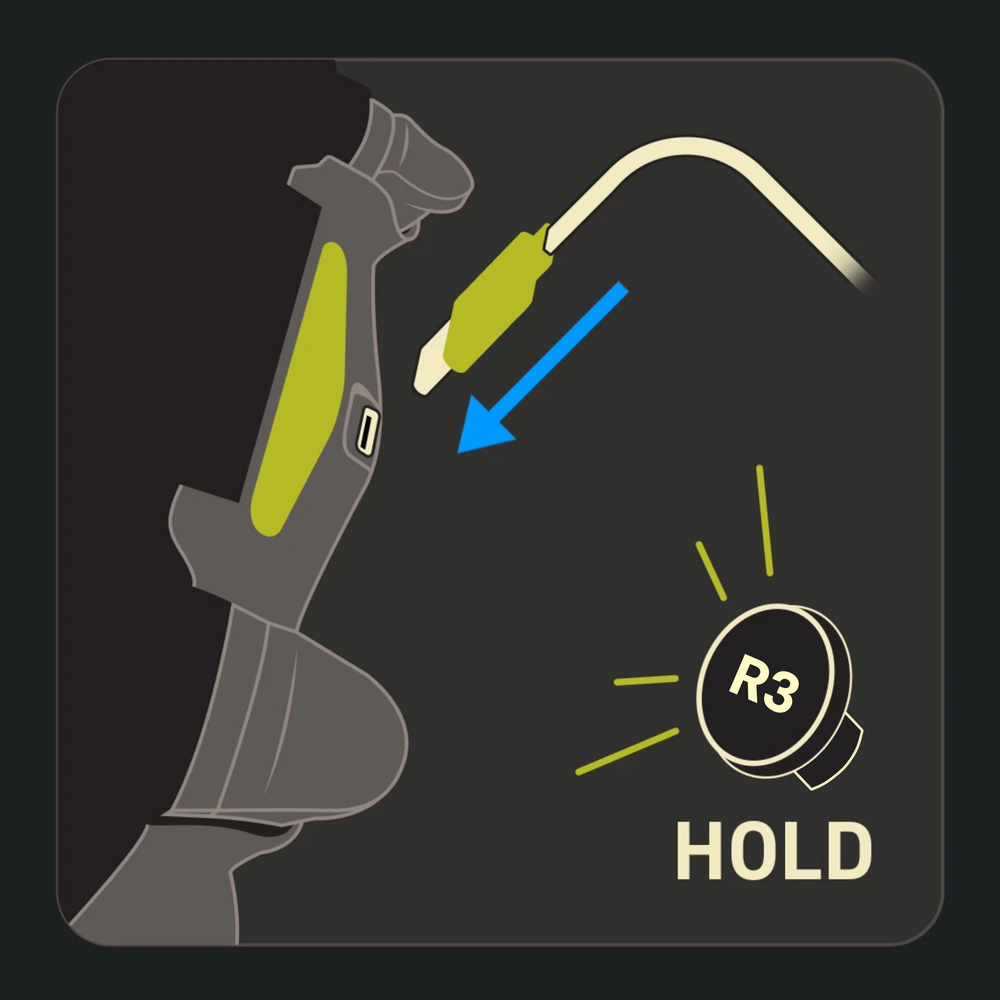
Press and hold R3 (or RS, on MHX). While holding, plug the USB-C end of the cable into your controller.
This activates Update Mode. When in Update Mode, the LED should flash green. If not, try again, and make sure that R3 (or RS on MHX) is held down while plugging the controller in.
If you still can't get into Update Mode, contact Customer Support.
Connect the Controller and Open the Firmware Page
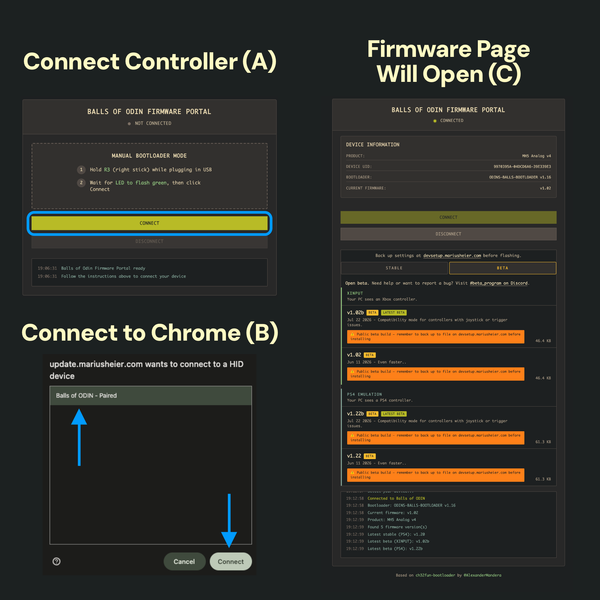
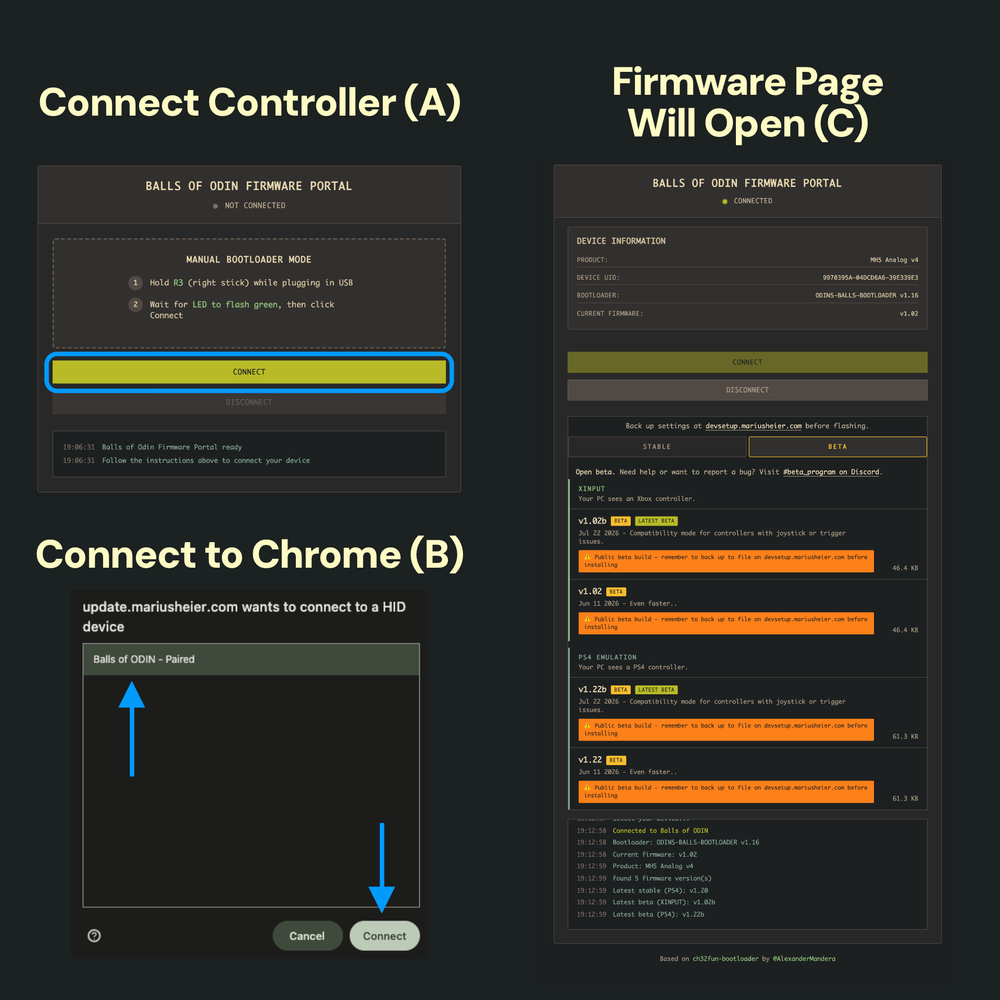
Click the CONNECT button (A). This will pop up a browser window. Select “Balls of ODIN - Paired” in the list, then click Connect once again (B).
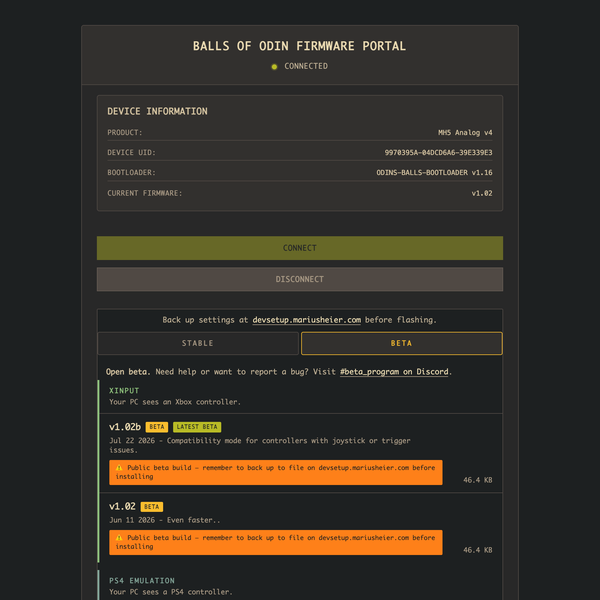
The firmware update page should open.
Firmware Info
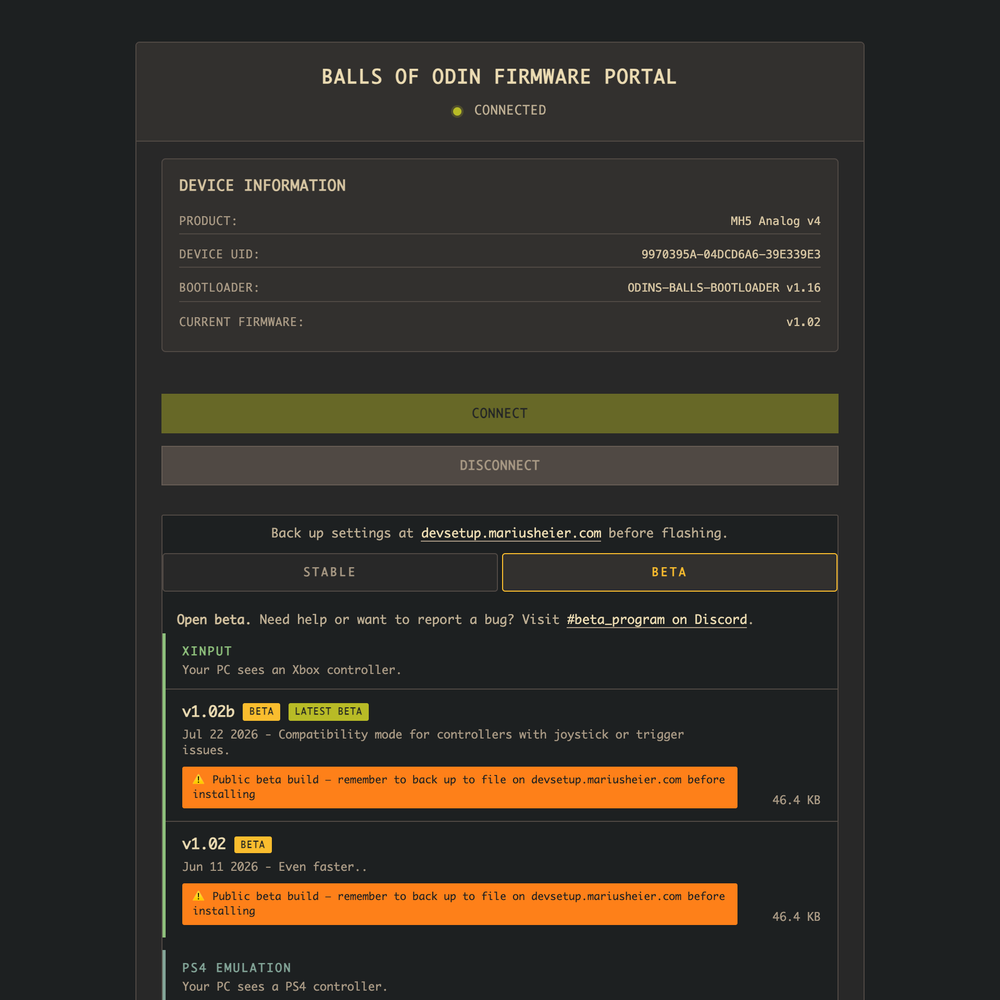
As of this writing, here are the most recent XInput firmware versions for each Project Marius board variant:
- MH4: v1.02b Beta
- MH5: v1.02b Beta
- MHX: v1.01 Beta
The XInput firmware is still technically in Beta, but should move to a Stable release soon.
Last updated: July 28, 2026
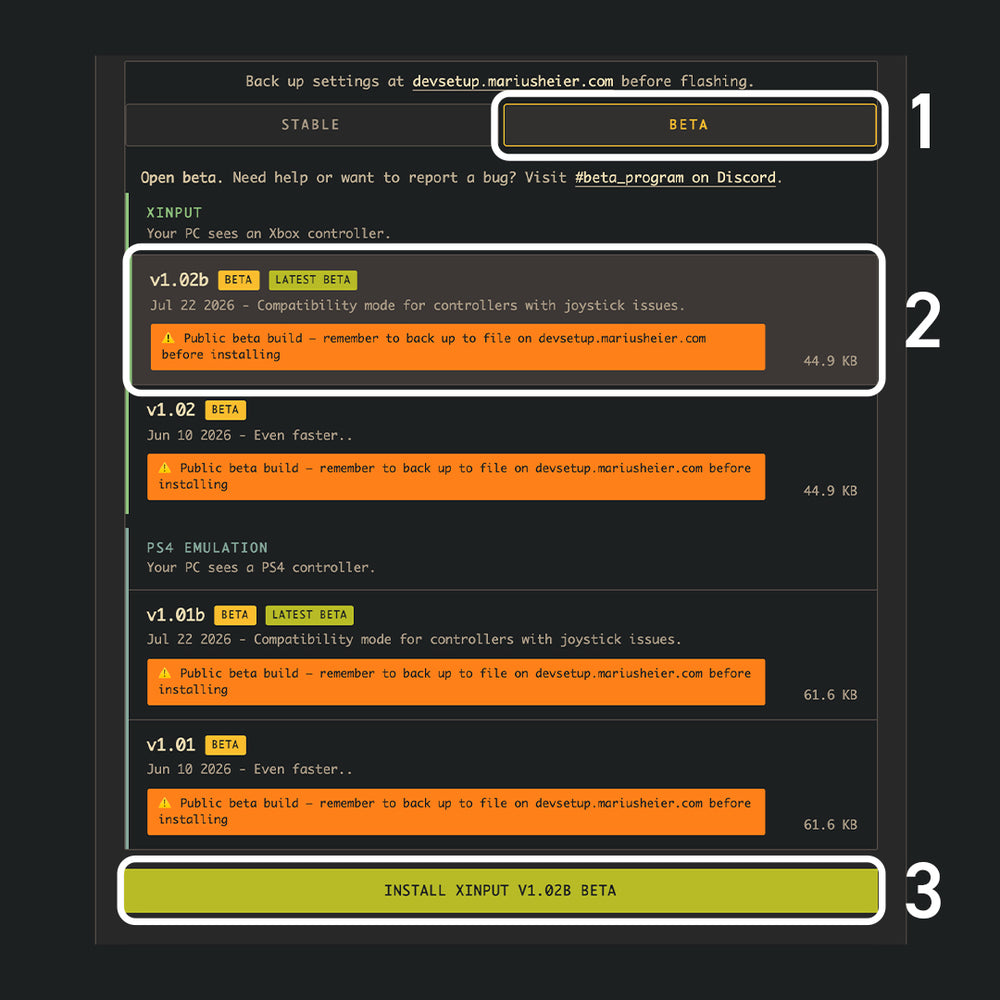
Select the Most Recent XInput Firmware
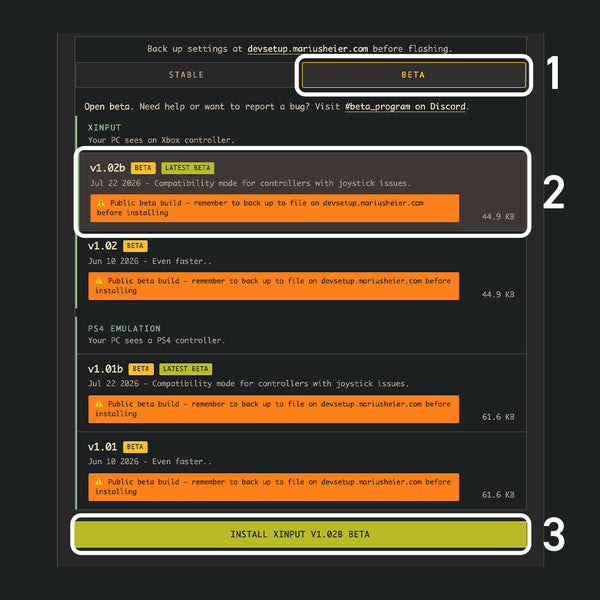
Click the Beta tab (A). Find the most recent XInput firmware at the top of the list and click on it (B).
Click the INSTALL button below the list and wait for the firmware update to complete.
⚠️ Do not unplug the controller during the update process.
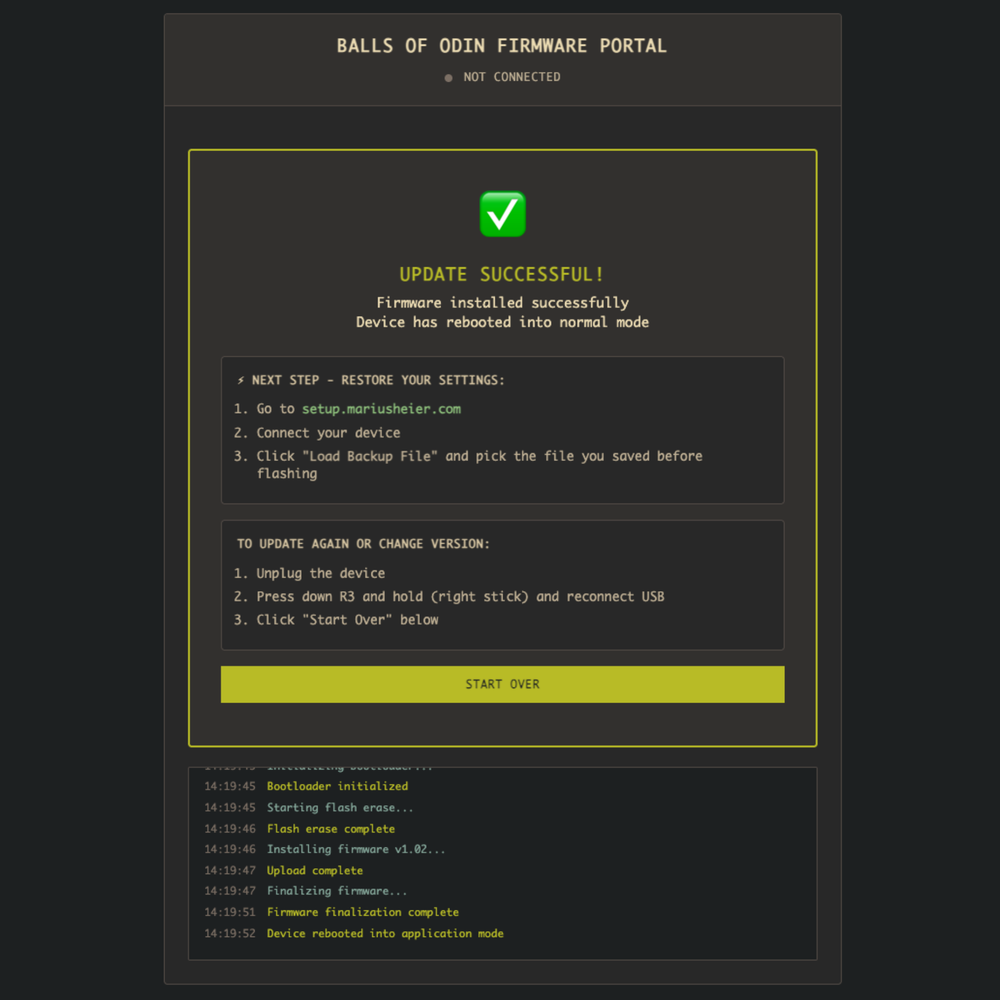
Continue to Setup & Calibration
After the installation completes, a new screen will open. The controller should also automatically enter Setup Mode — in Setup Mode, the LED gradually changes between red, white, and blue.
If the controller is in Setup Mode, leave the controller plugged in and continue to the next section. If not, unplug the controller before proceeding.
Initial Setup
USB-A → PC (Skip if done already)
Plug your USB cable into the back of your PC, NOT a front panel port or USB hub.
For best results, use a high-quality USB-A to C data cable (USB 2.0 or higher).
To purchase a cable from Battle Beaver, click here.
Before continuing, open the setup page:
USB-C → Controller (Skip if already in Setup Mode)
Press and hold the PS Button (or Guide Button, on MHX). While holding, plug the USB-C end of the cable into your controller.
This activates Setup Mode. When in Setup Mode, the LED should gradually change between red, white, and blue. If not, try again, and make sure to PS Button (or Guide Button on MHX) is held down while plugging the controller in.
If the LED flashes green instead, visit https://update.mariusheier.com and follow the instructions to update the firmware.
If you still can't get into Setup Mode, contact Customer Support.
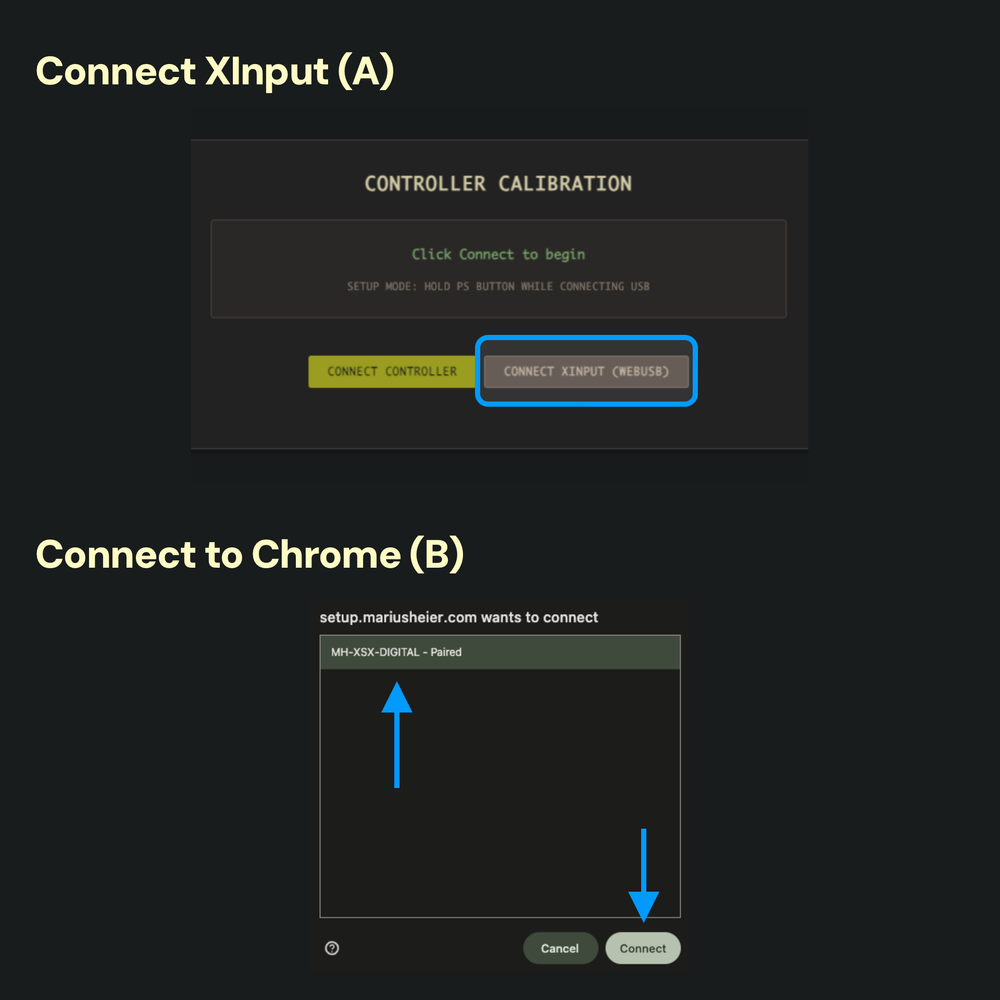
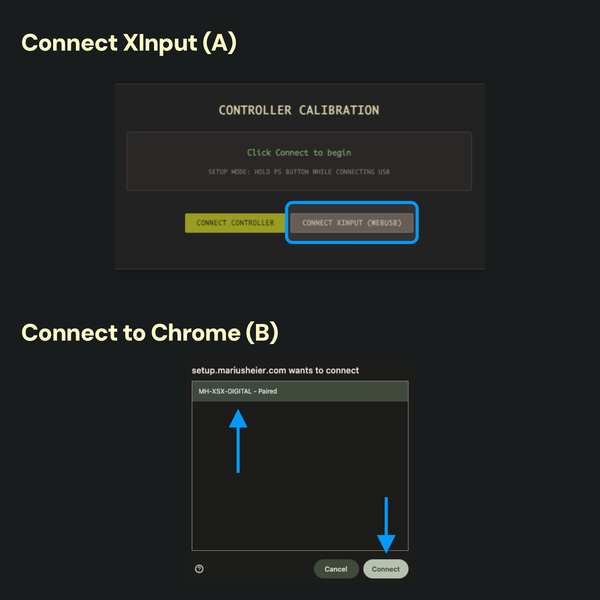
Connect the Controller
Click the CONNECT XINPUT (WEBUSB) button (A). This will pop up a browser window. Select your controller from the list, then click Connect (B).
Note: If the window says “No compatible devices found,” you may not have installed the XInput firmware correctly. Return to the previous carousel and try again.
Your next step varies: If the controller has a calibration saved, continue to the next slide. If the controller isn’t calibrated, go to Step 4C.
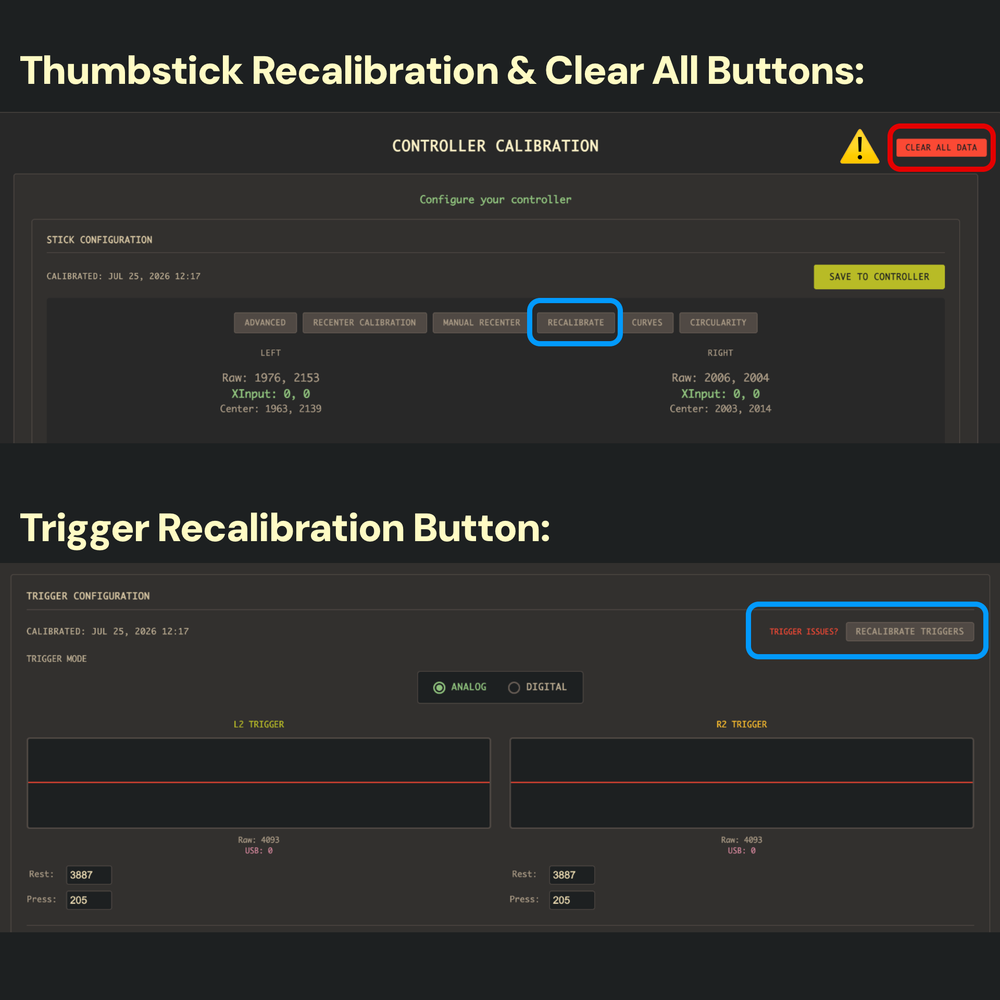
Controller Has an Existing Calibration ( 1 / 2 )
If the controller has an existing calibration saved, the main setup page will open.
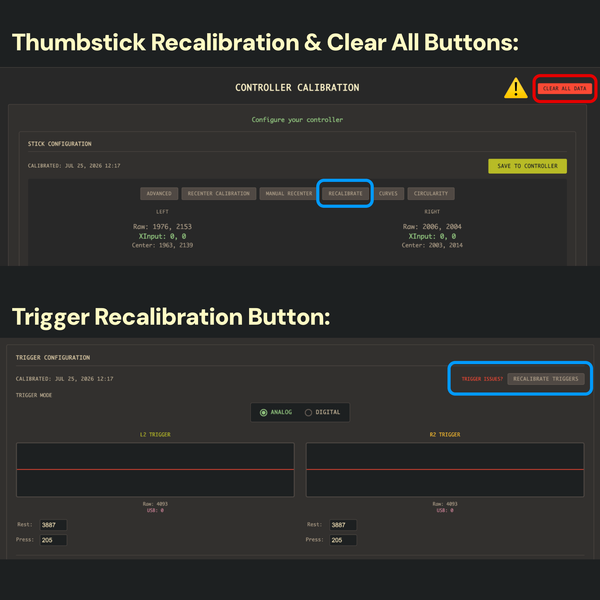
If you want to recalibrate your thumbsticks or triggers without starting fresh, there are individual RECALIBRATE buttons in their respective sections. Clicking one will pull up the recalibration screen with on-screen instructions.
Controller Has an Existing Calibration ( 2 / 2 )
If you’d like to start over totally fresh, click the red CLEAR ALL DATA button, then click OK.
⚠️ The only way to undo pressing this button is to restore a settings backup.
After clicking OK, you’ll return to the starting screen. Click CONNECT XINPUT (WEBUSB) once more and proceed to the next slide.
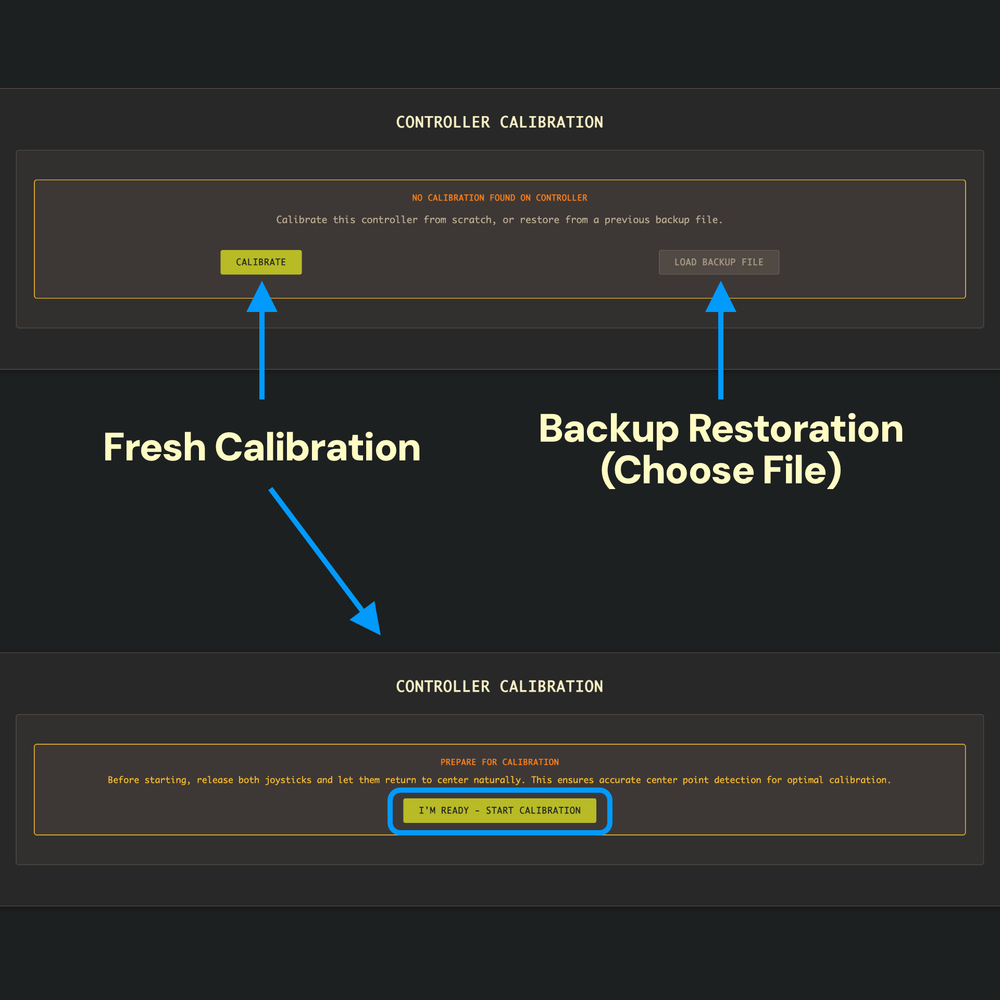
Controller Has No Calibration Saved
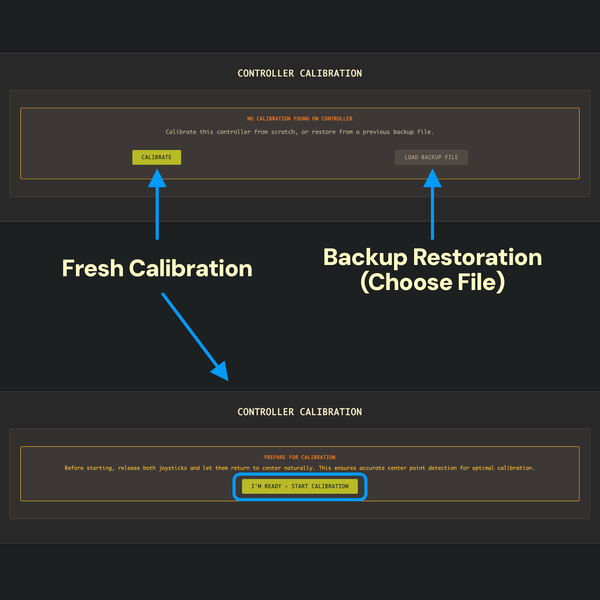
If there’s no existing calibration, or if you recently updated the firmware, a screen saying NO CALIBRATION FOUND ON CONTROLLER will appear.
If you saved a settings backup file earlier, click the LOAD BACKUP FILE button to restore the backup now. It will load your previous setup. Scroll down to the bottom and hit SAVE TO CONTROLLER to complete the backup process.
To calibrate fresh, click CALIBRATE, then read the on-screen instructions before clicking I’M READY - START CALIBRATION.
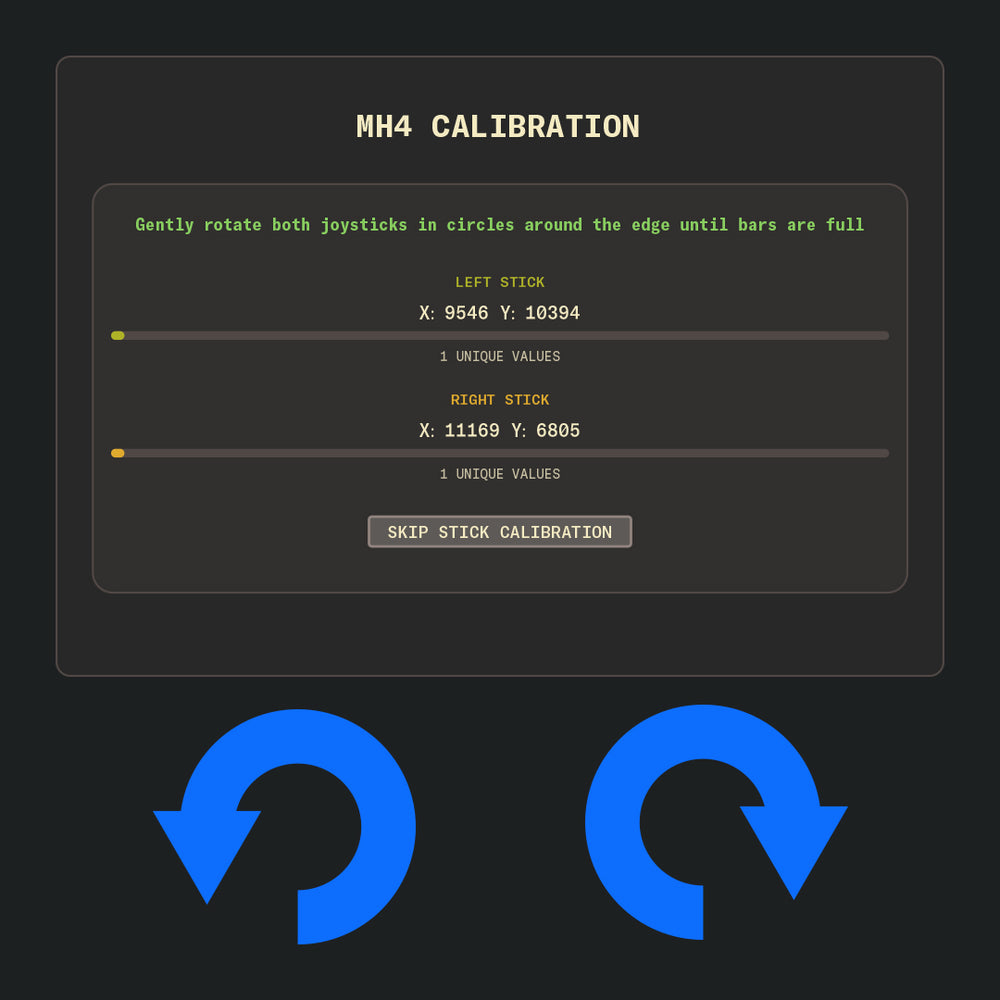
Thumbstick Calibration
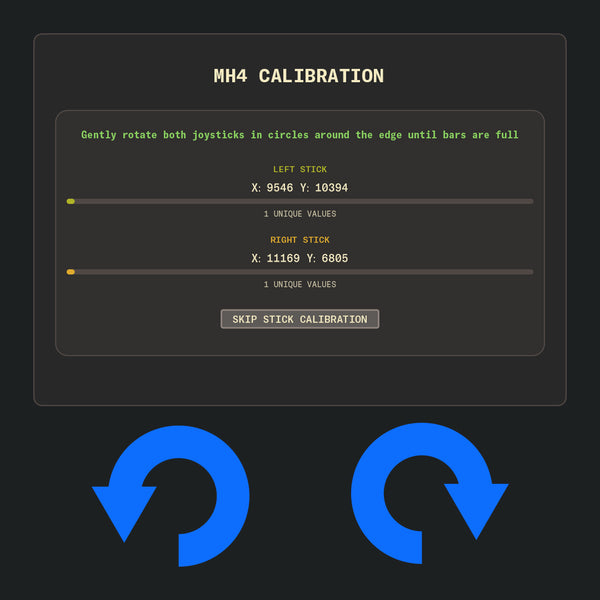
Follow the on-screen instructions and fully rotate both thumbsticks around the thumbstick holes in both directions. The progress bars will gradually fill.
Failing to capture the full range will negatively affect the calibration.
Once complete, the next step will start automatically.
⚠️ CAUTION: Too much OR too little pressure here against the walls of the thumbstick holes can cause calibration issues.
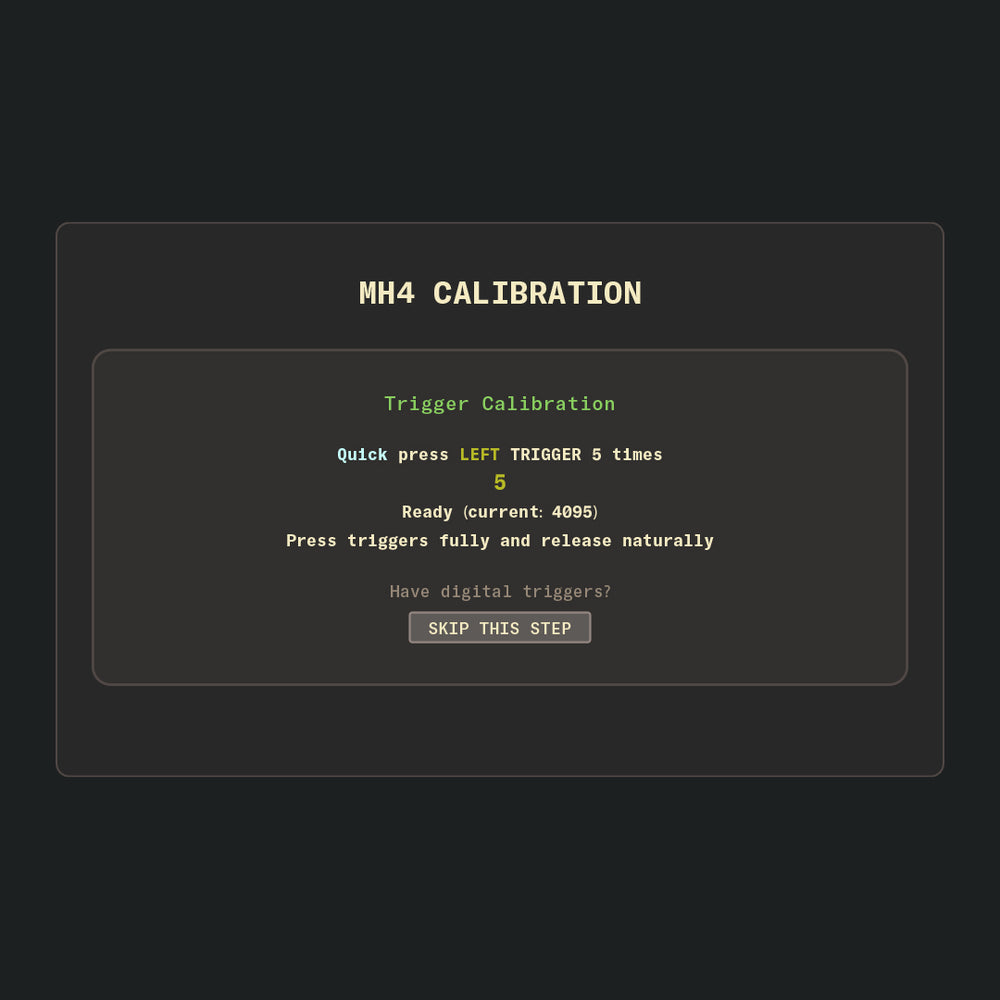
Trigger Calibration ( 1 / 3 )
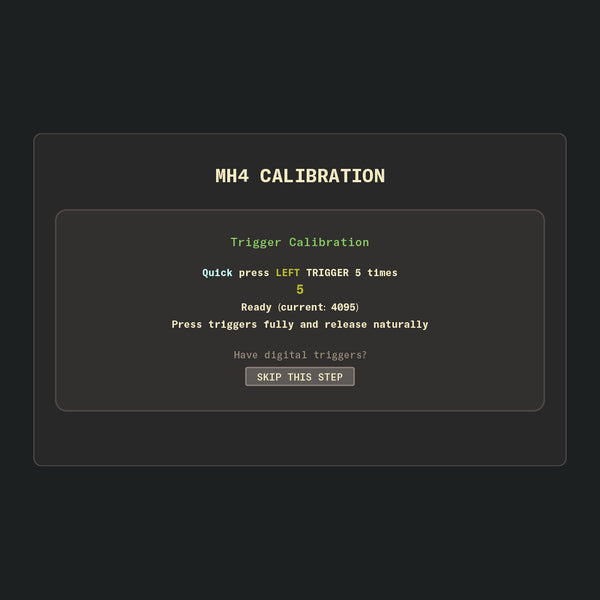
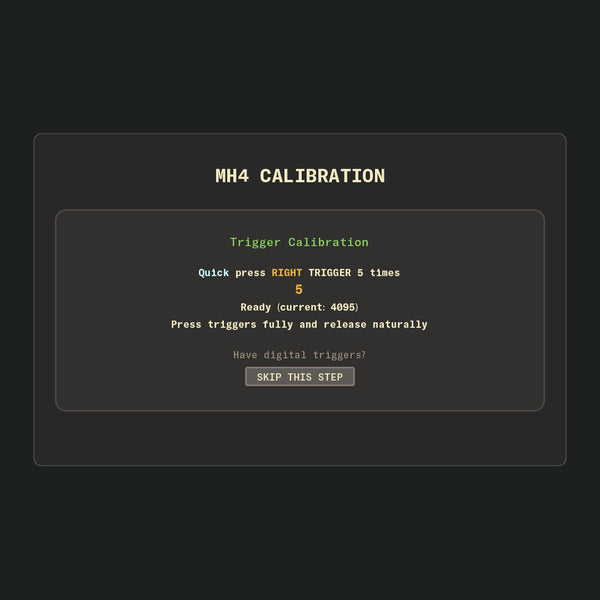
Follow the on-screen instructions. Quickly and fully press the Left trigger, then release it naturally. Repeat until the instructions change.
Do not click the SKIP THIS STEP button on any Battle Beaver controller. Doing so will cause the triggers to malfunction. (You can fix it by repeating Setup, or by selecting ANALOG and clicking RECALIBRATE TRIGGERS on the main Settings page after setup.)
Note: MHX boards will not have trigger calibration steps or options until Marius adds them during Phase 2, estimated around September 2026.
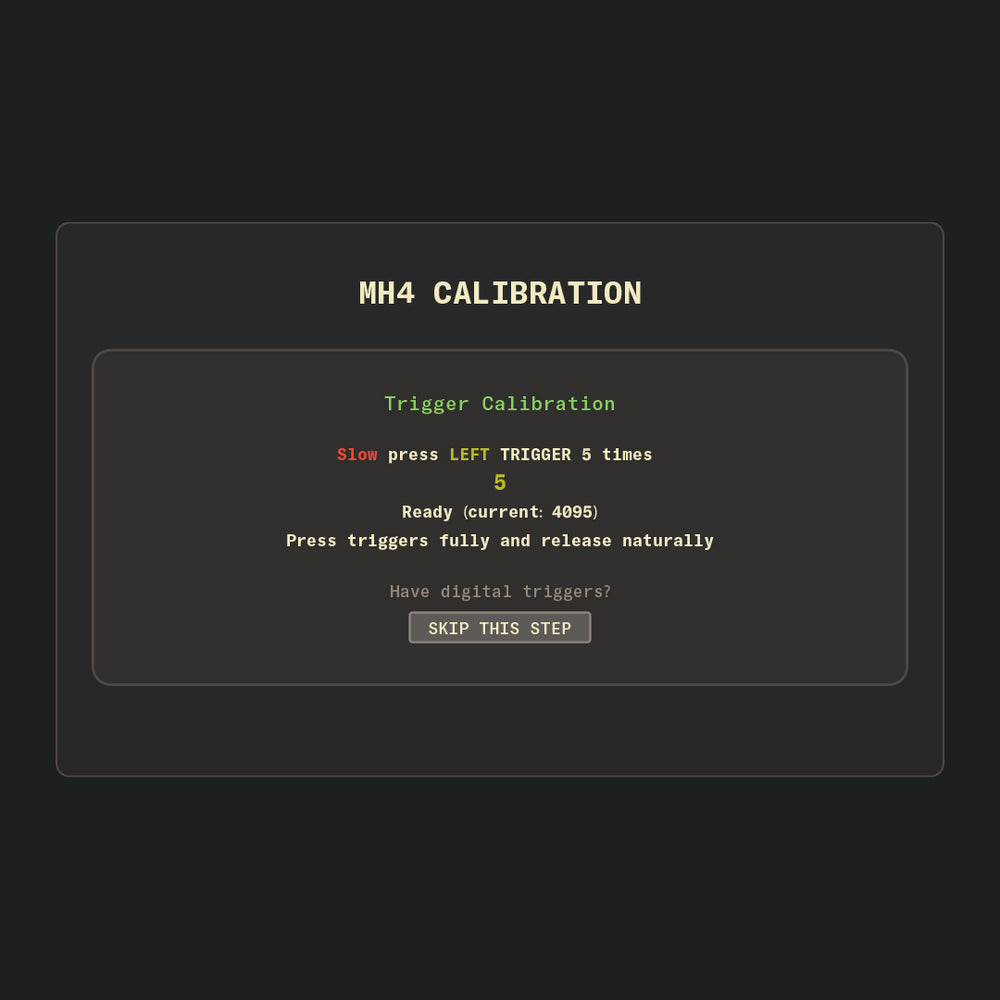
Trigger Calibration ( 2 / 3 )
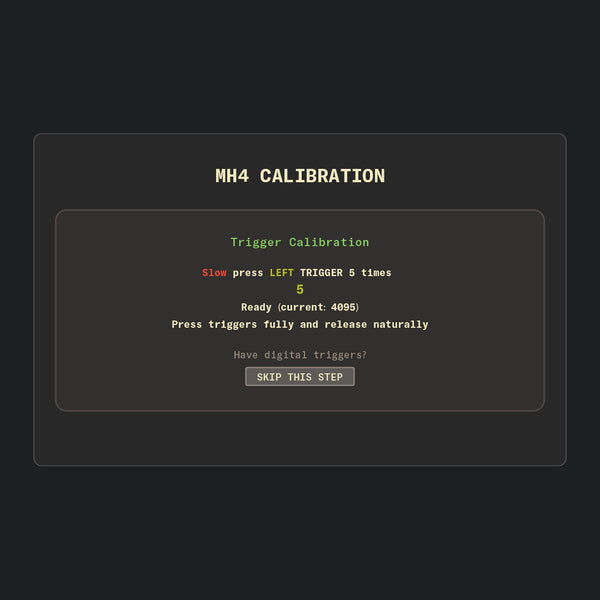
On the next screen, slowly and gradually press the Left trigger, then release it naturally. Repeat until the instructions change once again.
Tip:
The counters won’t decrease until your timing is correct. This can be tricky with Smart Triggers, since there’s no difference between a fast or a slow press.
On the slow press screen with Smart Triggers, treat it as a long press instead. Experiment with press timings until the software accepts the input.

Trigger Calibration ( 3 / 3 )
The screen will change once again. It’ll have you repeat the previous steps, but on the Right trigger this time.
After completing the trigger calibration, the main Calibration and Settings page will appear.
Calibration and Settings
The next few carousels will explain the various options and tools available in the main setup menu. For information about Circularity, Circularity Error Rate, and advanced thumbstick calibration, see the Circularity and Advanced Calibration page: https://battlebeavercustoms.com/pages/marius-advanced-calibration
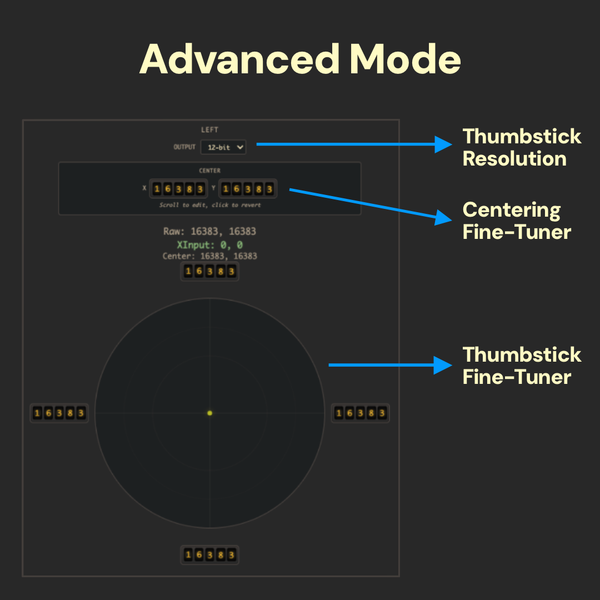
Advanced Mode
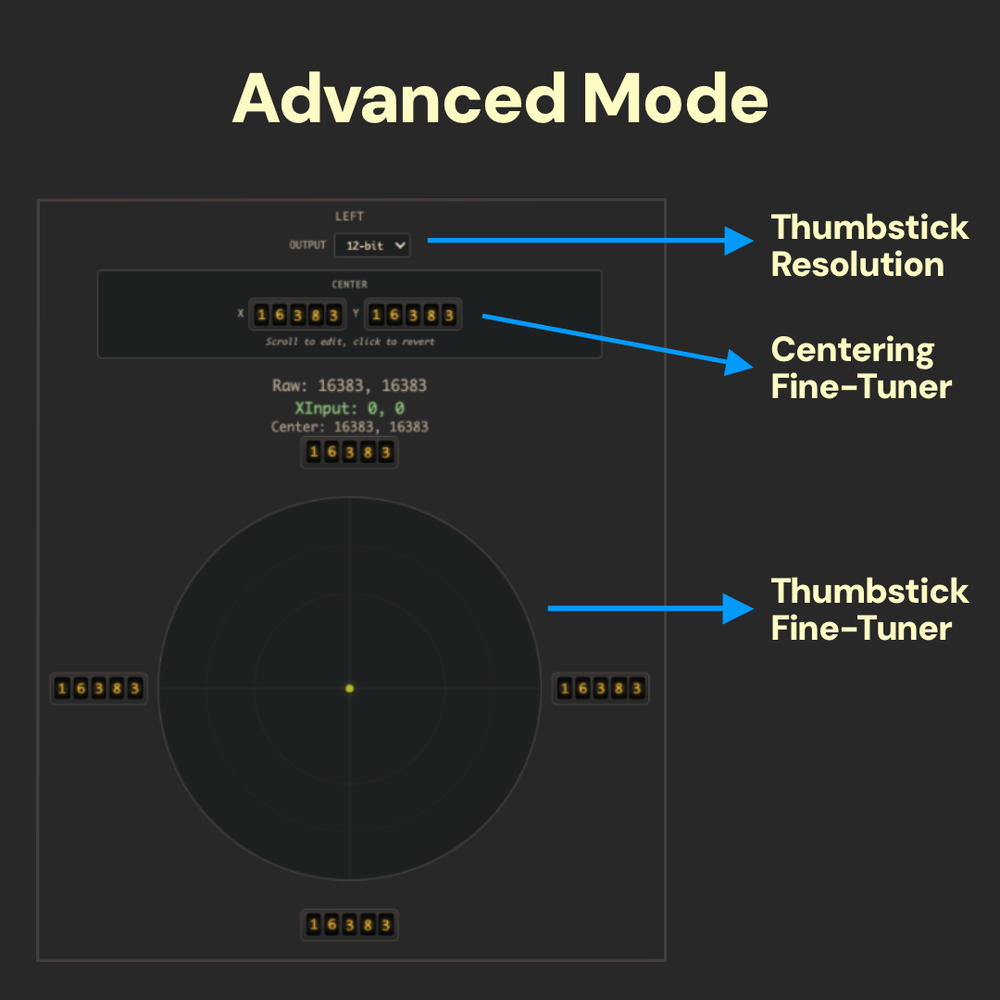
Clicking the ADVANCED button will open the fine-tuning options. These advanced options allow you to change the thumbstick resolution, fine-tune the center point, and manually change the range of your thumbstick input field.
12-bit is the current highest thumbstick resolution available.
Recentering
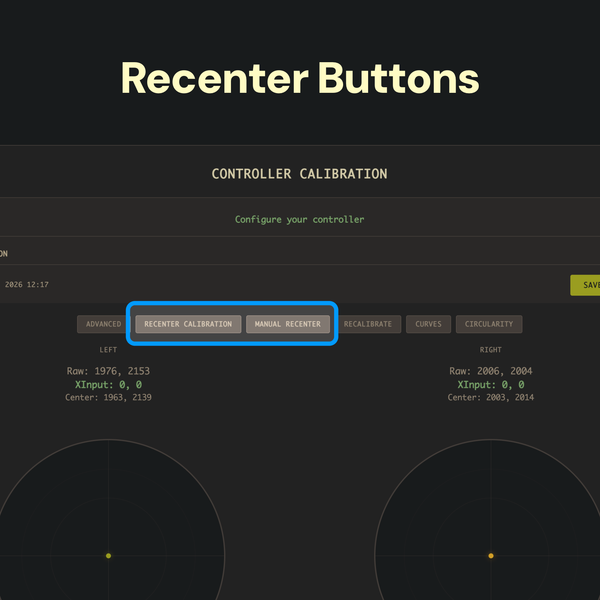
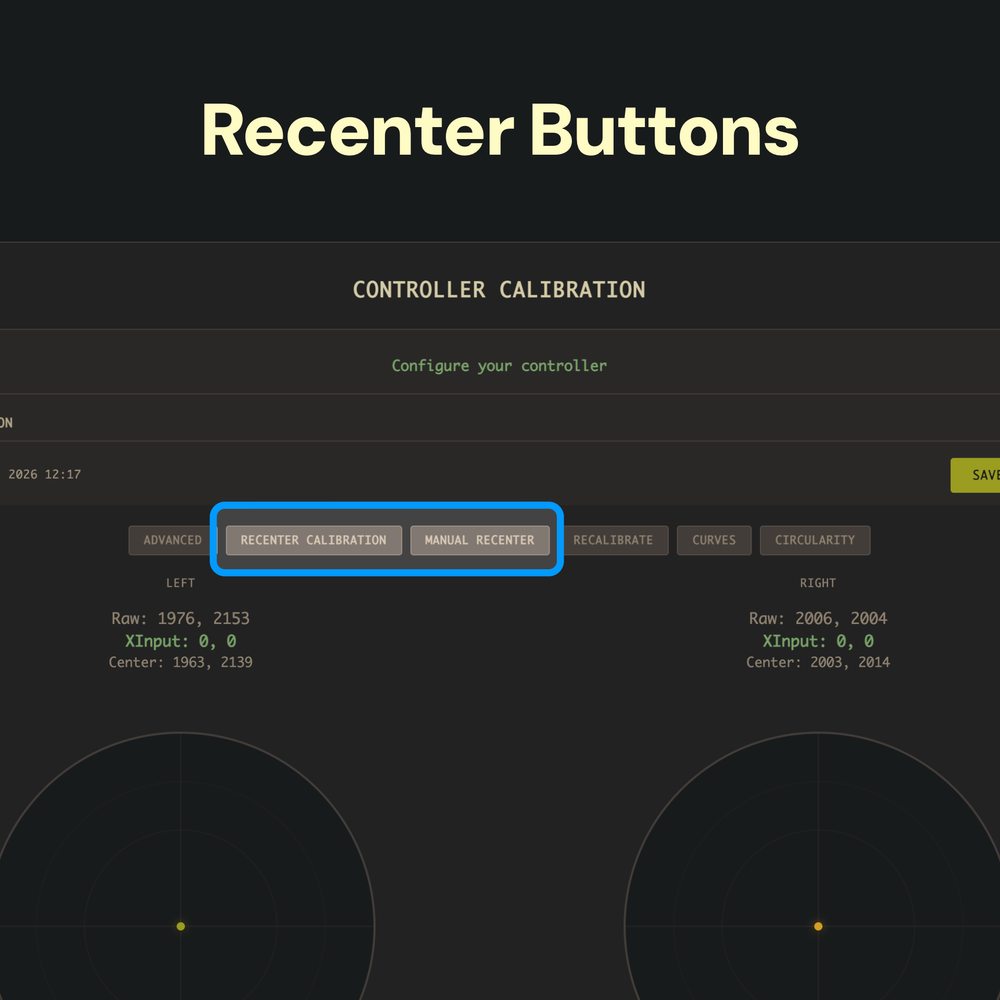
There are two options available for this: RECENTER CALIBRATION and MANUAL RECENTER.
- RECENTER CALIBRATION: Move the sticks around a bit and release them. Clicking this button will reset the thumbstick mech’s current resting point to (0, 0).
- MANUAL RECENTER: Clicking this button will set the thumbstick’s current position — wherever that is — as (0, 0). This can be useful if the natural resting point of the thumbstick mech is inconsistent based on the direction you release the thumbstick from, but we recommend that most users avoid this button.
Analog Curve Adjustments (Advanced)
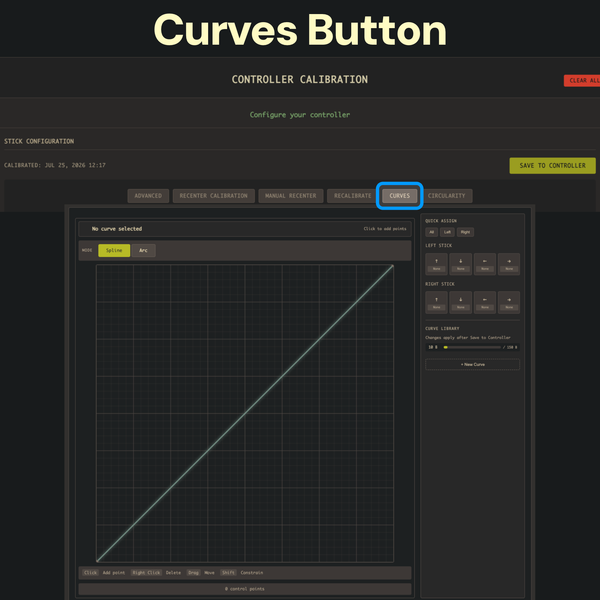
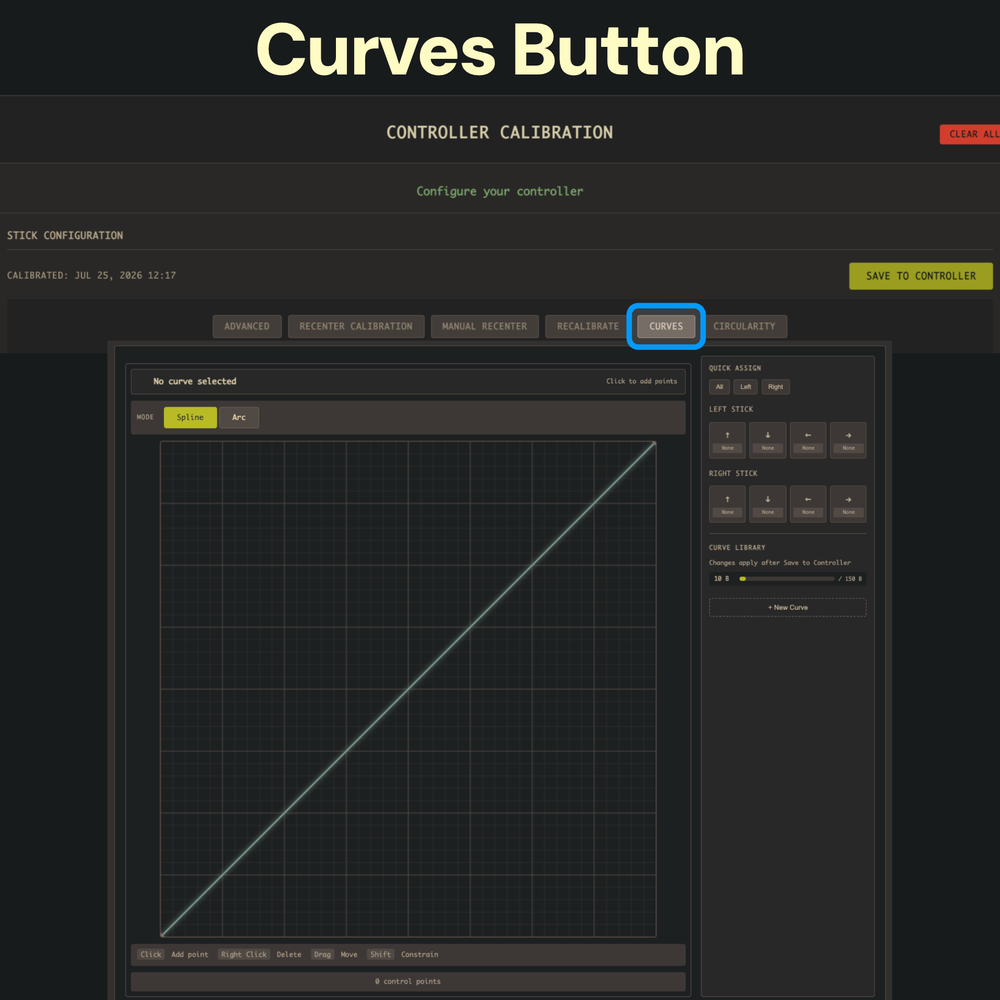
Clicking the CURVES button will allow you to modify your analog response curve, similar to the capabilities of a DualSense Edge controller or the settings available via Steam Input.
⚠️ CAUTION: Changing the analog curves here does not change any analog curve settings found in-game. The different response curves can stack and behave oddly.
Circularity Tester
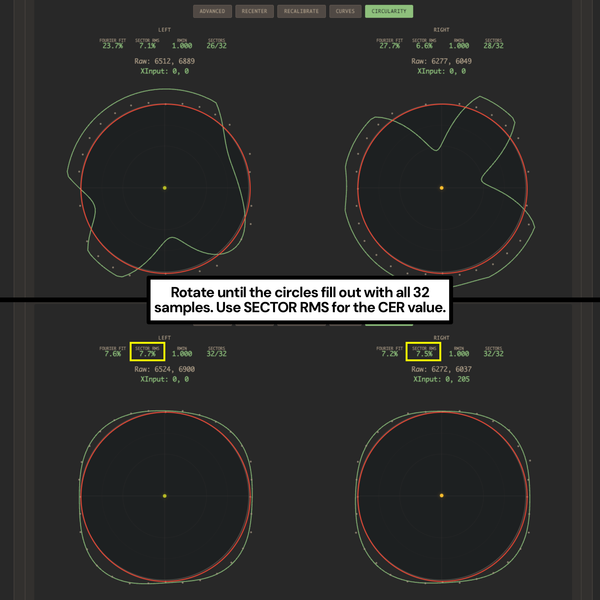
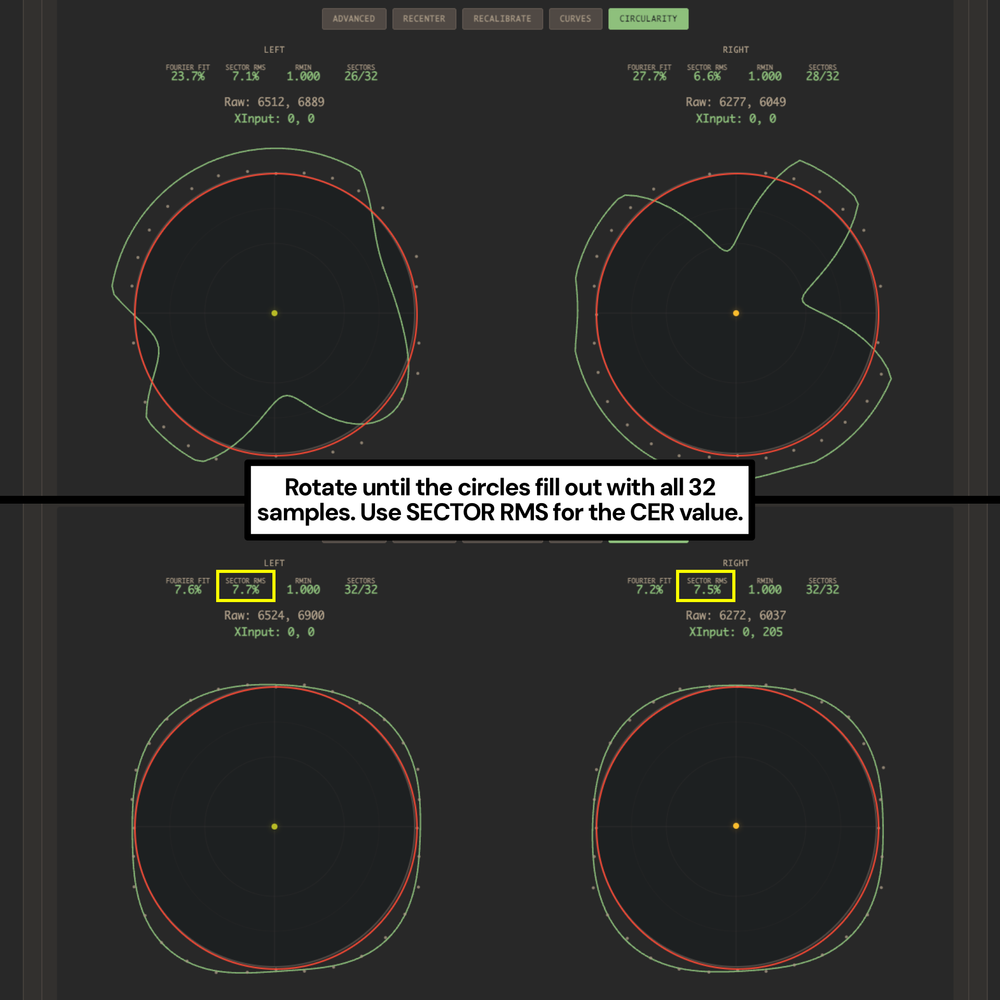
Clicking the CIRCULARITY button will activate the new Circularity Tester. Slowly and fully rotate your thumbsticks until all 32 samples fill up. The resulting shape is the shape of your input field. Your Circularity Error Rate is the number listed below Sector RMS.
Making any adjustments while a Circularity test is active will show you a live preview of how those adjustments will affect your Circularity.
For a deeper explanation of how to use this tester, see the Circularity and Advanced Calibration page.
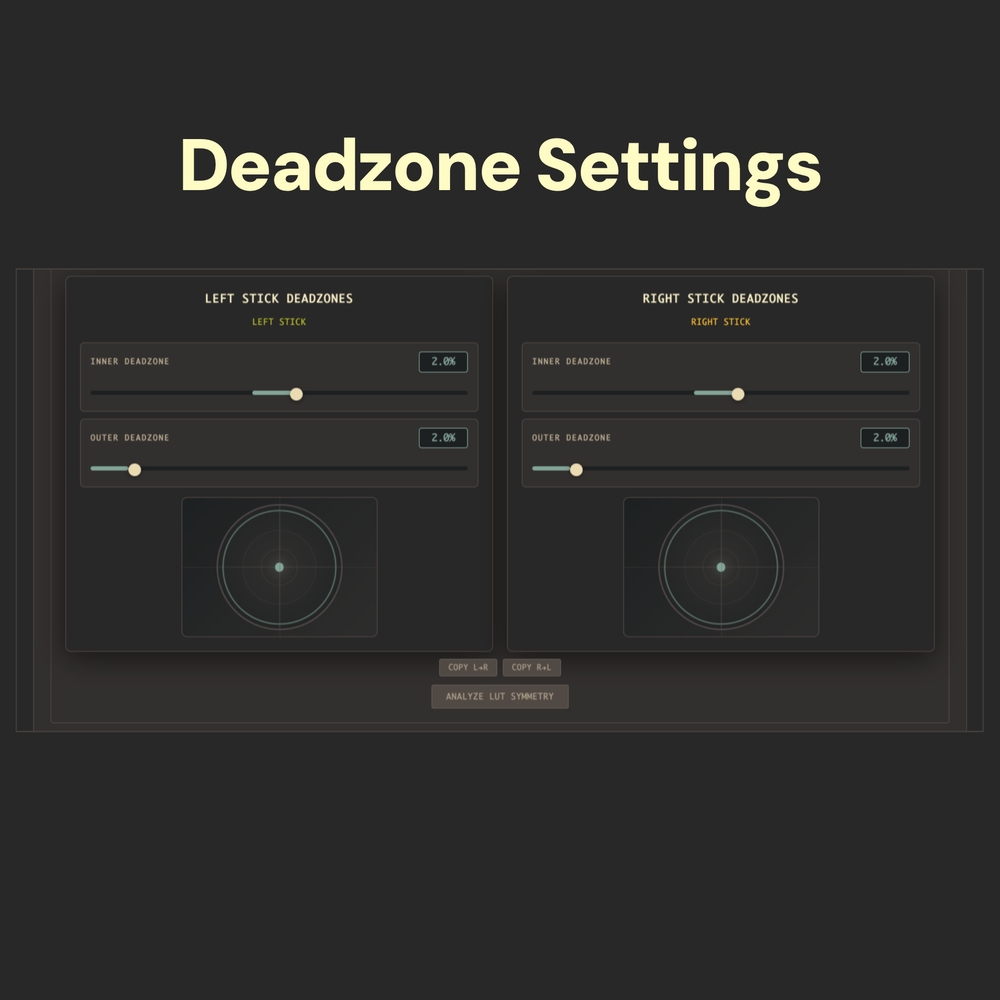
Deadzones
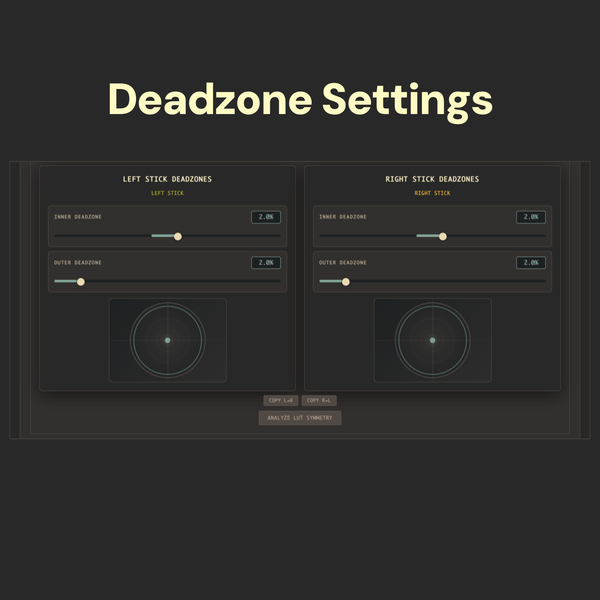
The Inner Deadzone and Outer Deadzone sliders allow you to modify the areas where a thumbstick won’t register any input.
Inner Deadzones are important for reducing bad behaviors like stick drift, and Outer Deadzones can reduce issues like sprint-canceling in games like Call of Duty.
Note: Changing deadzones here will not replace or override in-game deadzone settings. Deadzones set here can stack with in-game deadzones (or even behave a bit differently), so we recommend setting them in one place only to start with. Experiment with various settings to dial in your personal deadzone preferences.


Trigger Mode and MHX Note
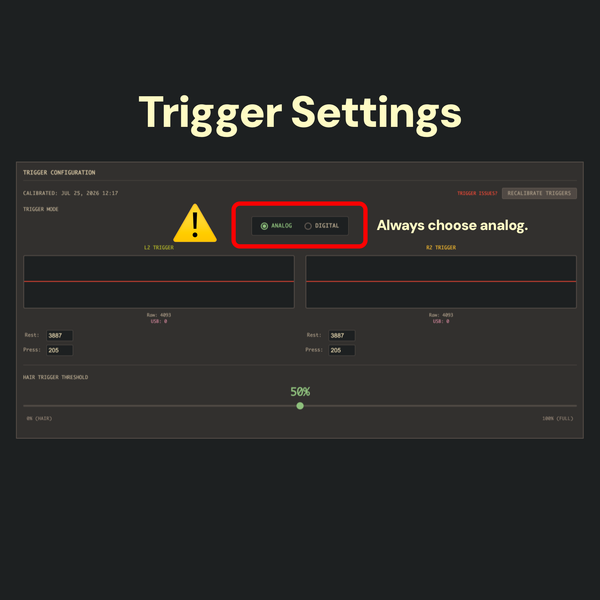
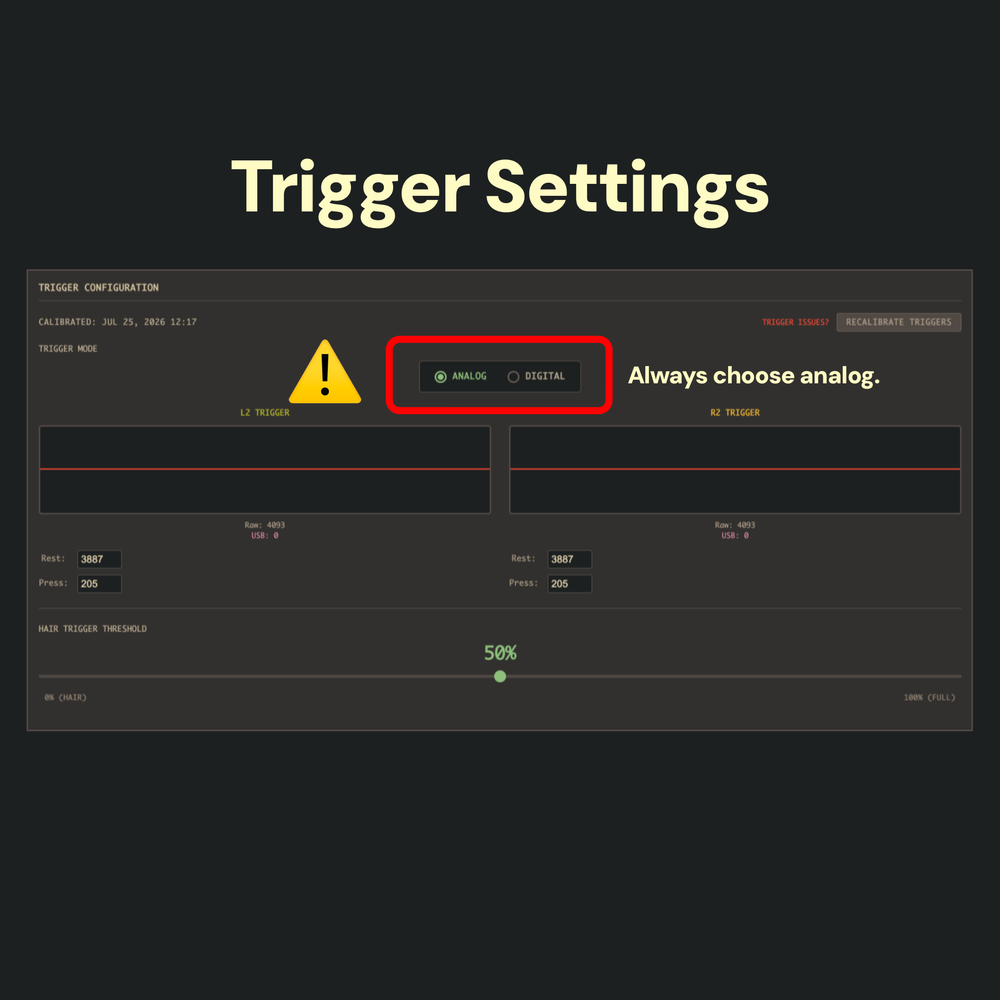
On all Project Marius boards built by Battle Beaver, set the TRIGGER MODE to ANALOG.
If you purchased your board from a different company, or if you did a DIY installation into a controller with Smart Triggers, this instruction may not be accurate for you.
How to tell: If you or the company you purchased from wire their triggers to the Eagle Board, choose DIGITAL.
If you purchased a Project Marius controller from Battle Beaver, we wire Smart Triggers to our own separate chip. Choose ANALOG for proper functionality.
Note: MHX boards will not have trigger calibration steps or options until Marius adds them during Phase 2, estimated around September 2026.

Rest Value ( 1 / 2 )
Sometimes, the trigger calibration during initial setup can leave you with values that don’t act how you want in-game. Fine-tune the trigger behavior here.
Below the trigger meter, find the Raw value. This number represents the raw input value reported by the board.
When triggers are at rest (untouched), the Raw value MUST be higher than the REST value in the nearby input box.
Rest Value ( 2 / 2 )
- Problem: Triggers are stuck partially activated.
Cause & Solution: Raw is lower than REST. Lower REST by 20-50 at a time until the issue resolves. - Problem: Triggers feel delayed.
Cause & Solution: Gap between Raw and REST is too large. Raise REST by 10-20 at a time until the issue resolves. - Problem: Triggers are too sensitive.
Cause & Solution: Gap between Raw and REST is too small. Lower REST by 10-20 at a time until the issue resolves.
Experiment with various values until the triggers feel right to you. A gap of 100-150 usually feels pretty good.

Press Value
- Problem: Triggers can’t max out the meter.
Cause & Solution: PRESS value is too low. Raise it by 20-50 and re-test, repeating until the issue resolves. - Problem: Triggers max out way too early.
Cause & Solution: PRESS value is too high. Lower it by 10-20 and re-test, repeating until the issue resolves.
Note: Triggers maxing out early isn’t necessarily a bad thing in most games, but it can have a minor impact on any games requiring partial, gradual, or precise trigger presses. Experiment until it feels right to you.

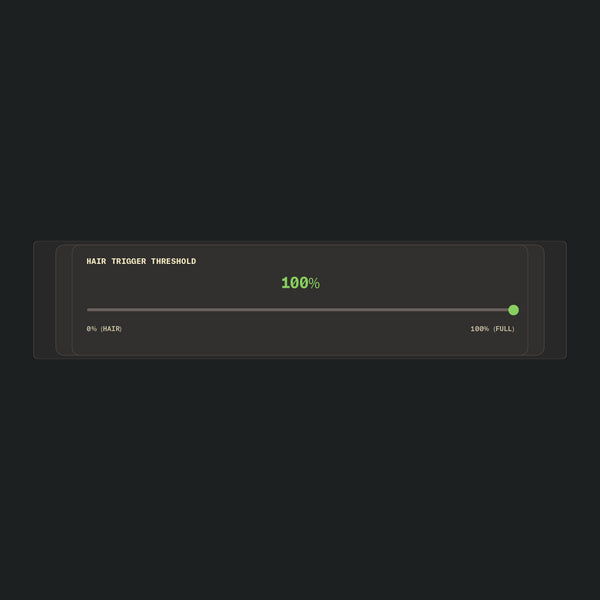
Hair Trigger Threshold
Set this to 100% to avoid any odd interactions. Currently, the setting doesn’t seem to work as expected.


LED Control
This section allows you to modify the light bar’s LED color, brightness, and behavior. When we ship a controller with a Project Marius board, we leave most of the LED settings alone, except for the LED’s primary color:
#0099FF - Battle Beaver Blue.
We won’t be hurt if you replace it with your favorite color instead. (Much.)
External Input Mapping (Rear Buttons & Touchpad)
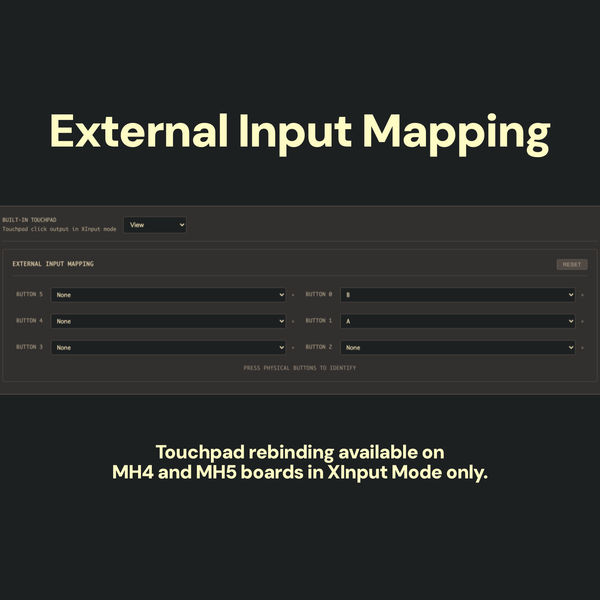
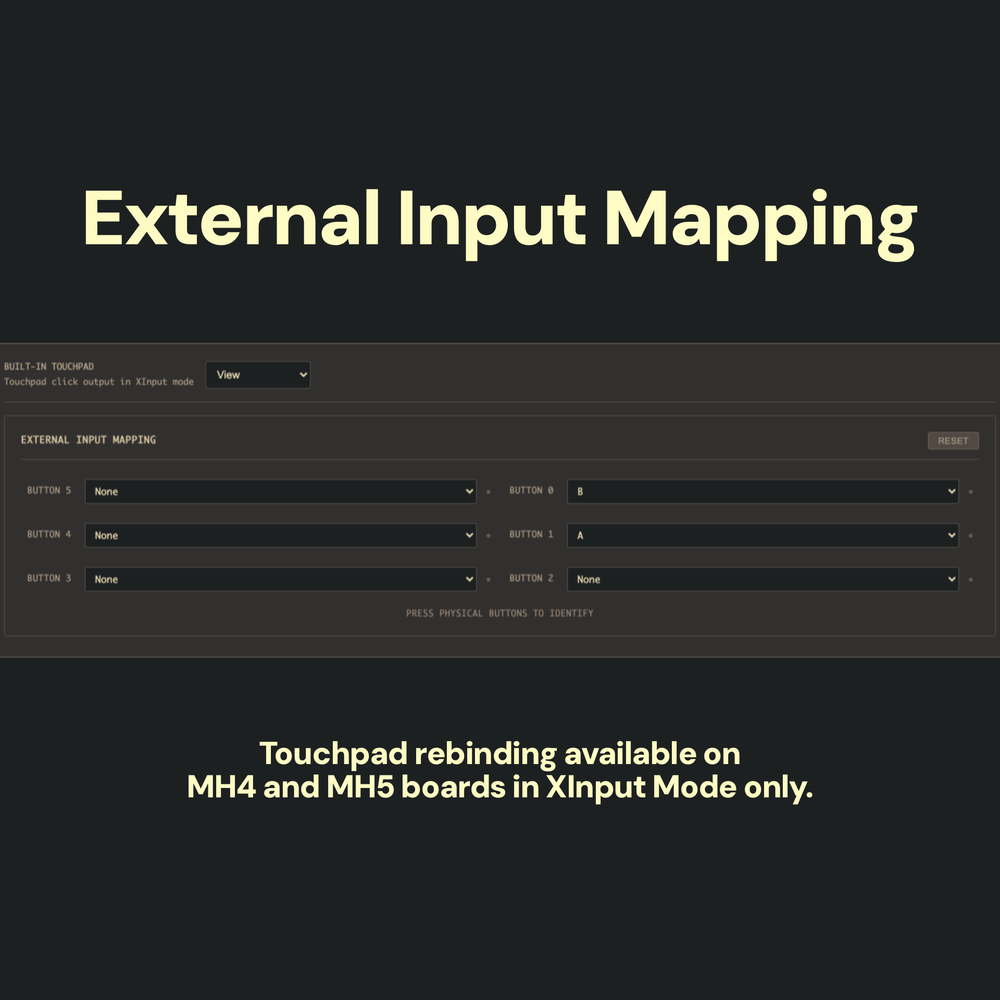
Our Project Marius boards currently support up to six remappable rear buttons. Assign them here. Pressing a rear button on your controller will temporarily light it up in the software, allowing you to identify which button is which.
Most controller inputs are available for rear button assignment. Our most common configuration is Left - X, Right - O.
MH4 and MH5 only: The BUILT-IN TOUCHPAD option in XInput Mode allows you to rebind the Touchpad button to whatever input you prefer.
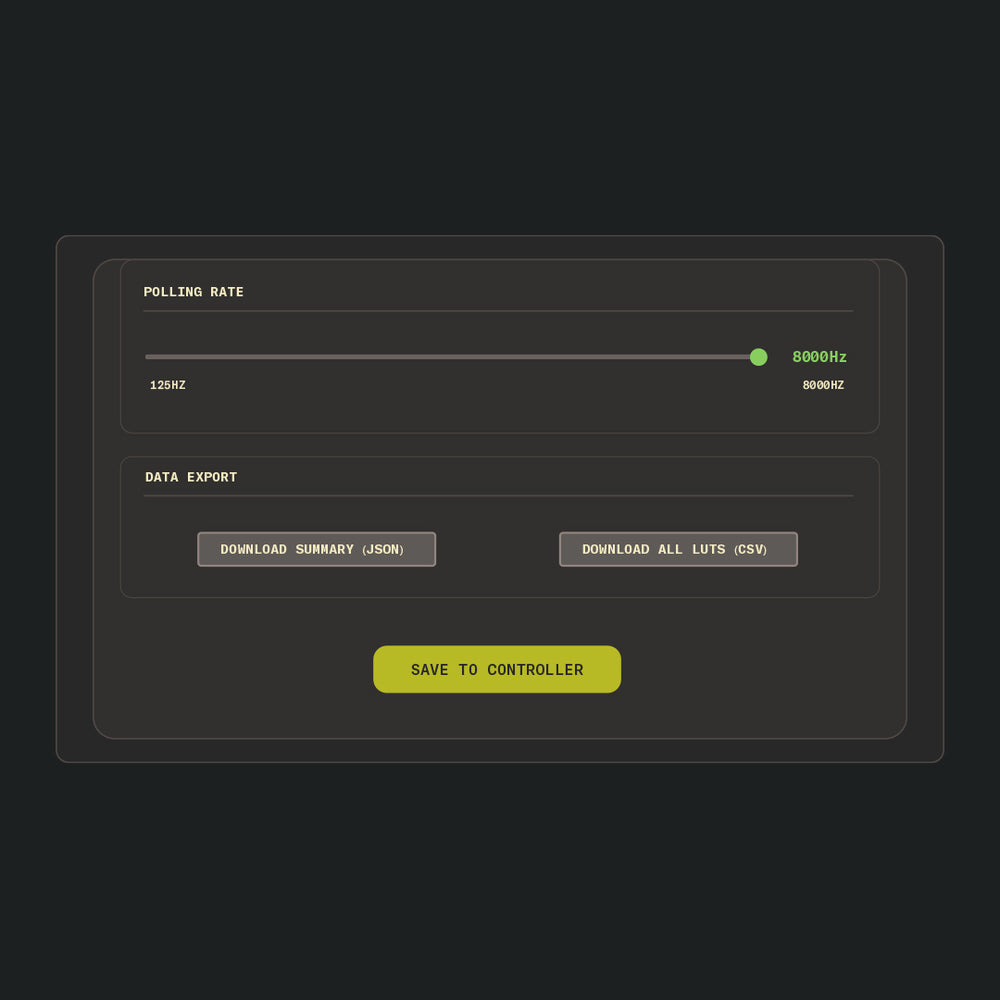
Polling Rate
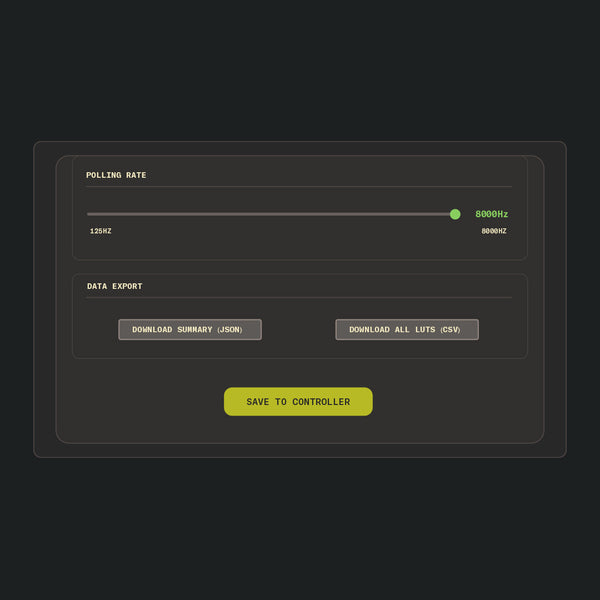
Drag the slider all the way to the right (8000Hz) to enable maximum controller performance without relying on external overclocking software.
⚠️⚠️ IMPORTANT ⚠️⚠️
Older CPUs, some motherboards, certain USB ports, or even specific games may malfunction at 8KHz. If you notice stuttering or reduced performance ingame, there’s a chance that the 8K polling rate is too much for your system to handle. In this case, we recommend dropping to 4K (or 2K if needed) and seeing if that resolves the issue.
Polling rate is only one factor. Even at 4K or 2K, you’re still gaining most of the speed benefits of the board.

Save Your Calibration
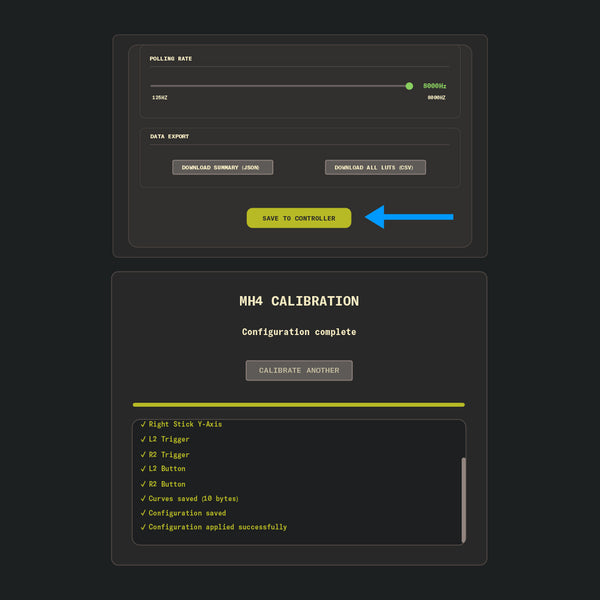
After setting everything up how you want it, click the SAVE TO CONTROLLER button. The screen will change, and when successful, the new screen will say Configuration complete.
Unplug and replug the controller, then test it out to make sure everything functions as expected.
If so, congratulations! Enjoy gaming at the fastest speeds available.
This completes the basic setup & calibration instructions. For more information on Circularity, Circularity Error Rates, and advanced thumbstick calibration, continue to Part 2 by clicking the button below.
Troubleshooting
My LED is flashing green and I can't set up the controller
My LED is flashing green and I can't set up the controller
Update the controller's firmware by visiting https://update.mariusheier.com and
following the on-screen instructions.
Support
Frequently Asked Questions
Why order the JDM-5X from Battle Beaver instead of Marius?
Why order the JDM-5X from Battle Beaver instead of Marius?
The benefit of purchasing a JDM-5X board from Battle Beaver means receiving a ready-to-play controller.
We remove all of the required equipment and technical soldering experience to make use of the parts you'd get from Marius, and offer our own patented and signature modifications that professional and casual players enjoy to build a uniquely competitive PC-Only controller.
Setup Configuration & Update Links
Setup Configuration & Update Links
To setup, recalibrate, remap, and more:
https://setup.mariusheier.com/
For update notifications please use Marius' Official Channels:
Firmware Updates: https://update.mariusheier.com/
How does it connect?
How does it connect?
The board requires a wired connection to a Rear I/O port with a USB-C to A cable. Connections to a case USB port or a USB hub are incompatible.
What can this board NOT do?
What can this board NOT do?
As this is a custom board, it is important to note that controllers built with this WILL NOT HAVE the following:
- Console connectivity
- Bluetooth connection
- Macros / Keybinding
- Rumble / Vibration
- Touchpad Tracking
- Battery
What are MIDAS Mechs (HE)?
What are MIDAS Mechs (HE)?
MIDAS Mechs (HE) are the custom 5 pin Hall Effect thumbstick for the PS4 JDM-5X by Marius Heier.
MIDAS stands for Magnetic Integrated Digital Array Sensors, and are only compatible with the PS4 JDM-5X board. Unfortunately the 5 pin connectors are not compatible with 1st Party boards from Sony or Microsoft.
These unique Hall Effect thumbsticks overcome the issue you see in traditional 3 pin HE sticks other 3rd party controllers have by utilizing a fully circular magnet sensor for wider signal coverage, and an additional 2 pins of signal transference for improved accuracy and stability.
Why isn't Battle Beaver using the same Ginful Thumbstick mechanisms as Marius?
Why isn't Battle Beaver using the same Ginful Thumbstick mechanisms as Marius?
All of our modifications were built and developed on the ALPS platform, but after testing the Ginful stick boxes we believe that they have a significant enough difference in the return-to-center feeling that we decided to stick with what we know.
What is a JDM-5X board? What are the best use cases for a controller with a JDM-5X board?
What is a JDM-5X board? What are the best use cases for a controller with a JDM-5X board?
The JDM-5X board is a custom PC only controller board developed by Marius Heier, matching the form factor of a PlayStation 4 board. It's one of the fastest boards available on the market: GPDL testing shows a button latency of 1.43ms at 8KHz, which is faster than an overclocked 8KHz DualSense controller (2.11ms) and is roughly twice as fast as a max-overclocked PlayStation 4 controller (2.89ms).
Click here for Average Latency Comparison by Controller.
The JDM-5X also reaches that 8KHz polling rate without having to install separate overclock drivers like hidusbf. With this board in your hands, you'll never have to doubt whether or not your controller is keeping up with you.
What are the differences between the MIDAS HE 5-pin thumbstick mechs and the two 3-pin options (Magneto TMR and Alps OEM)? Which one is better?
What are the differences between the MIDAS HE 5-pin thumbstick mechs and the two 3-pin options (Magneto TMR and Alps OEM)? Which one is better?
Alps OEM thumbstick mechs are the standard mechs used on PlayStation controllers. They'll act and feel just like a stock controller, because they're stock parts. However, due to how carbon-track potentiometers work, they will almost always develop stick drift over time.
This is an unavoidable limitation of the physical hardware. If you're okay with that risk, nothing will perform or feel more like the controllers you're used to than OEM thumbstick mechs.
If you want to avoid thumbstick drift for as long as possible, though, MIDAS HE 5-pin and Magneto TMR 3-pin both fulfill that role.
They both have upgraded sensors that use magnets to generate thumbstick input values instead of a carbon track that wears down over time. Both offer superior performance compared to OEM, and both are highly drift-resistant.
Where they differ is in the technology:
MIDAS HE 5-pin
MIDAS Mechs use an array of Hall Effect magnetic sensors combined with two extra pins for signal validation, so they're capturing more reliable data from more areas of the magnetic field as the thumbsticks move. Hall Effect technology is older than TMR, but the sensor array setup is fundamentally different than most Hall Effect mechs, which usually only use a single sensor.
Magneto TMR 3-pin
Magneto Mechs use TMR (Tunnel Magnetoresistance) sensors, the highest-precision magnetic single-sensor technology available in a controller. They lack the extra validation pins and sensor array of the MIDAS mechs, but precision is still high and drift is still rare. Common feedback is that they feel closer to OEM handling.
So are MIDAS mechs or Magneto mechs the better magnetic sensor option?
This will fundamentally come down to personal taste. Both magnetic sensors are extremely accurate and highly drift-resistant. TMR is generally better technology than Hall Effect, but the MIDAS Mechs have the extra sensors and pins for a cleaner and more complete signal. Magneto Mechs, on the other hand, can feel closer to an OEM controller, and they perform at a similar level for a lower cost.
Either choice is excellent.
Will the controller come ready to plug and play?
Will the controller come ready to plug and play?
Yes, your controller is ready to go out of the box, set up and calibrated in-house by our technicians before shipping.
Note: We calibrate every controller to match our optimal settings, but those settings may not match your preferences. Customize at https://setup.mariusheier.com.
How does Battle Beaver configure the controllers?
How does Battle Beaver configure the controllers?
Stick Configuration
Inner Deadzone: 2%
Outer Deadzone: 5%
Raising the Outer Deadzone helps push the Circularity Error Rate to a range closer to OEM, reducing the likelihood of sluggish diagonals. We also fine-tune the thumbstick values in Advanced mode to make sure each cardinal direction (up, down, left, right) easily reaches a maximum value. Exact fine-tune numbers vary.
Trigger Configuration
Mode: Analog for all trigger types. (See "Should I choose Analog or Digital for
triggers?" for more explanation.)
Rest: When triggers are at rest, we make sure the Raw value under the trigger meter is slightly higher than the Rest value. Exact numbers vary.
Press: This value controls how early or late the triggers reach their maximum value. Exact numbers vary.
Hair Trigger: 100% - This slider doesn't behave as expected, so we set it to 100% to effectively disable it.
LED Control
Color: #0099FF for Battle Beaver blue.
External Input Mapping
Button assignments vary depending on customer selection. Our most common layout is Left - X (cross), Right - O (circle).
Polling Rate
Slider: 8KHz.
My board should be running at 8KHz, but it isn't. What can I do?
My board should be running at 8KHz, but it isn't. What can I do?
First, check these common factors:
- The setup configuration: make sure the polling rate slider didn't reset itself to a
lower value, then re-save the calibration and check again. - Your cable specs: USB-A to USB-C, USB 3.0+ for best performance.
- The USB port you're using: connect to the motherboard directly, not through a USB hub or to a front panel USB header.
If those aren't the issue, join Marius's Discord server at https://discord.com/invite/QcCkfbkp3S and ask for help there. Include as much detail as you can.
Note: to check the polling rate of your JDM-5X board more reliably, use the DEEPPOLL tool found at https://tools.mariusheier.com.
I’m suddenly having performance issues, stuttering, jittery aim, etc. on my PC. What’s wrong?
I’m suddenly having performance issues, stuttering, jittery aim, etc. on my PC. What’s wrong?
8KHz polling rate may be too much for your system (or the game you’re playing) to handle. Older CPUs, some motherboards, or certain USB ports can get overloaded by the higher polling rate.
If you don’t want to drop to a lower polling rate, try the easy options first: different cable, different USB port, different game. After that, use Marius’s CPU Direct tool to make sure you’re connected to a CPU-direct USB port.
If the issue continues, drop the polling rate to 4KHz and check again. If that isn’t it, drop to 2KHz and check again. And if that isn’t it, the most effective next step is contacting Marius via his Discord for deeper hardware troubleshooting: https://discord.com/invite/QcCkfbkp3S.
Note: Battle Beaver is unable to assist with individual motherboard-level connection issues or JDM-5X hardware issues beyond the basics.
What’s the point if I can’t have it at 8KHz?
What’s the point if I can’t have it at 8KHz?
We’re currently building an XLAT latency measuring tool from Finalmouse to provide our own robust testing numbers. However, early community testing has shown that even all the way down at 1KHz, the JDM-5X can perform faster than 8KHz OC’d DualSense/DSE controllers.
As Marius himself puts it, asking the pizza guy, “Is it done yet?” more often is less important than making sure the pizza is cooked faster.
Can I have the hidusbf software running? Can I use that software on a JDM-5X controller?
Can I have the hidusbf software running? Can I use that software on a JDM-5X controller?
Yes, the software can be running without causing an issue. However, using it to try to
overclock one of these boards will cause performance to degrade. Instead, make sure no overclocks are applied to the JDM-5X board or the USB port it's plugged into, then use Marius's Setup page to apply the 8KHz polling rate.
Do I need to use DS4-Windows or a similar program to use this controller on PC?
Do I need to use DS4-Windows or a similar program to use this controller on PC?
No. These boards share the PlayStation 4 form factor, but they are not a PS4 board
replacement. The JDM-5X has no console compatibility and is PC-only. Because of
this, it's plug and play on PC — no extra software required.
Should I choose Analog or Digital for triggers?
Should I choose Analog or Digital for triggers?
For all Battle Beaver JDM-5X controllers: calibrate the triggers as Analog, regardless of whether you ordered stock or Smart Triggers. During initial setup, do not click the SKIP THIS STEP button.
Smart Triggers initial setup: follow the on-screen instructions as closely as you’re able to. Since there’s no way to actually slow press a Smart Trigger, however, getting the counter to go down during that step will require some experimentation with the timing.
If you did accidentally select SKIP THIS STEP during initial setup, don't worry:
repeating the Setup or Calibration process will allow you to fix it.
In the Trigger Configuration section in the Settings Menu, make sure the triggers are set to Analog.
The reason: Selecting Digital tells the controller to look for triggers on the Eagle Board. We wire Smart Bumpers and Triggers to a separate chip.
Note: this information may change with a future board revision or software update, and it may not match if you purchased your controller from a different company.
Last updated: February 27, 2026.
Can I swap from a 3-pin to a 5-pin thumbstick mech, or vice versa? How much would it cost?
Can I swap from a 3-pin to a 5-pin thumbstick mech, or vice versa? How much would it cost?
3-pin and 5-pin thumbstick mechs and boards are not cross-compatible. The boards themselves are different where the mechs connect.
Swapping from 3-pin to 5-pin requires purchasing a new board of the correct variant. To purchase one from Battle Beaver, you have three options:
- Build your own: https://battlebeavercustoms.com/pages/ps4-marius-builder
- Send your existing controller in for an upgrade: https://
battlebeavercustoms.com/pages/ps4-send-in-upgrade - Purchase a DIY Kit to upgrade at home: https://battlebeavercustoms.com/
collections/marius-board-kits
Costs vary depending on which option you choose. Base cost is $150 for a 5-pin board, and $120 for a 3-pin board, not including installation or other modification costs.
(Pricing info is current as of February 27, 2026, and is subject to change.)
What TMR sensor does Battle Beaver use in Magneto Mechs?
What TMR sensor does Battle Beaver use in Magneto Mechs?
AKNES V5/V6 TMR sensors, retrofit onto an OEM Alps frame for a drift-resistant upgrade that keeps the familiar OEM feeling under your thumbs.
Note: this information will change over time if/when AKNES releases new versions and
we receive new stock.
Last updated: February 27, 2026.
How can I verify my polling rate?
How can I verify my polling rate?
Use the DEEPPOLL tool located at https://tools.mariusheier.com.
Note: this tool does not measure input latency itself, only polling rate.
For DEEPPOLL support, join Marius's Discord server at https://discord.com/invite/QcCkfbkp3S.